
Blueprints Early access
Build the workflow from blocks. See every result on one page.
Wire data, simulation, AI review and views into a flow on a grid. Run it on your workers, watch it live, and keep every result next to the version of the flow that produced it.
How it works
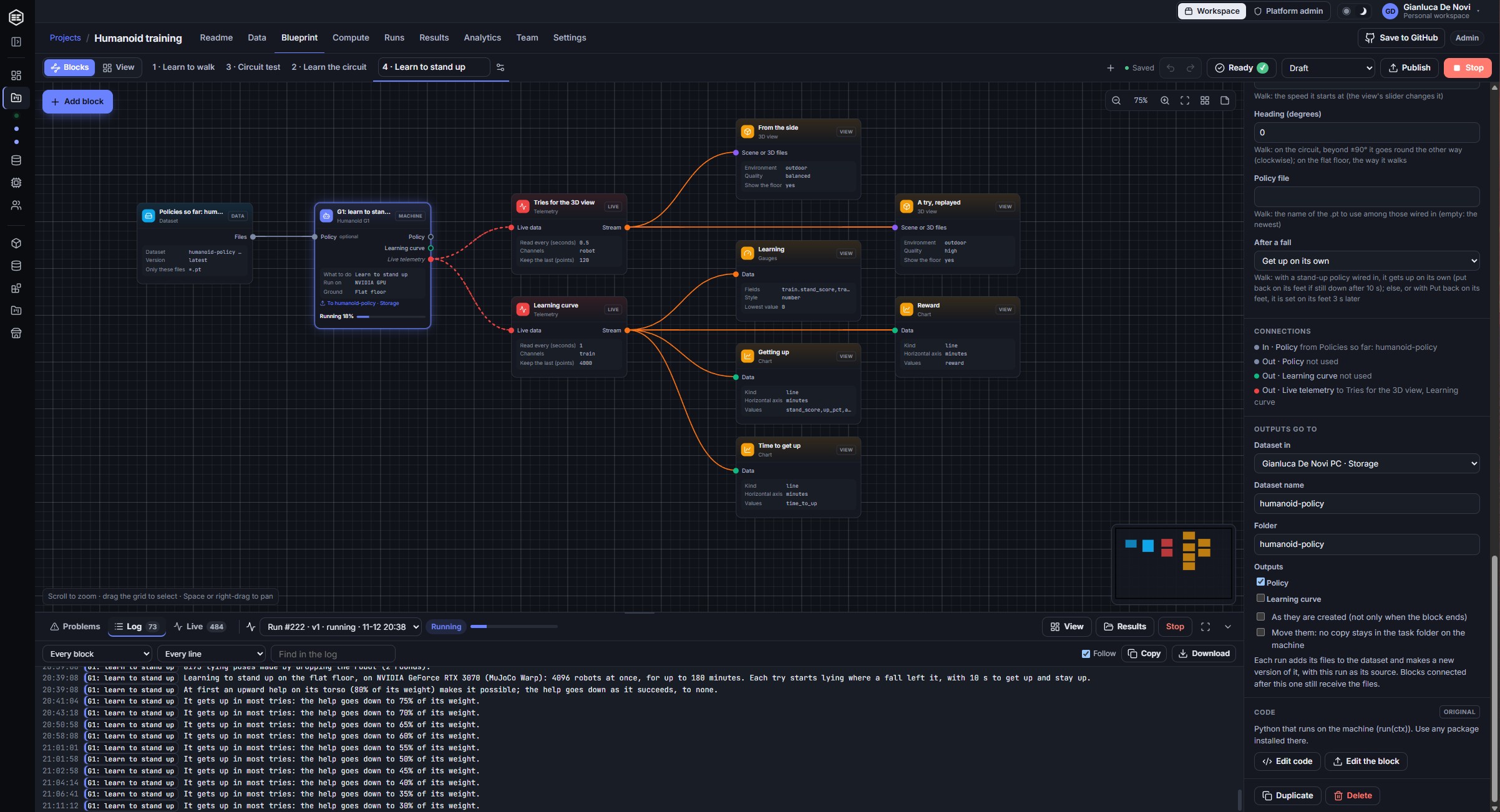
From an empty grid to results in four steps
- 01
Place blocks
Drag blocks from the menu, or start from a template: a drone landing study, an AI data review, a Python lab, or one your team saved.
- 02
Wire them
Connect outputs to inputs. Only the inputs that accept that kind of data light up, and problems are listed before you run.
- 03
Run on your workers
The plan shows which blocks run where and in parallel. Blocks go to the workers of the project that fit; parallel blocks spread over several.
- 04
See the results
Every view of the flow appears on the View page, live while the run goes on, and stays there for the next run.
The View page
One page for every result of the flow
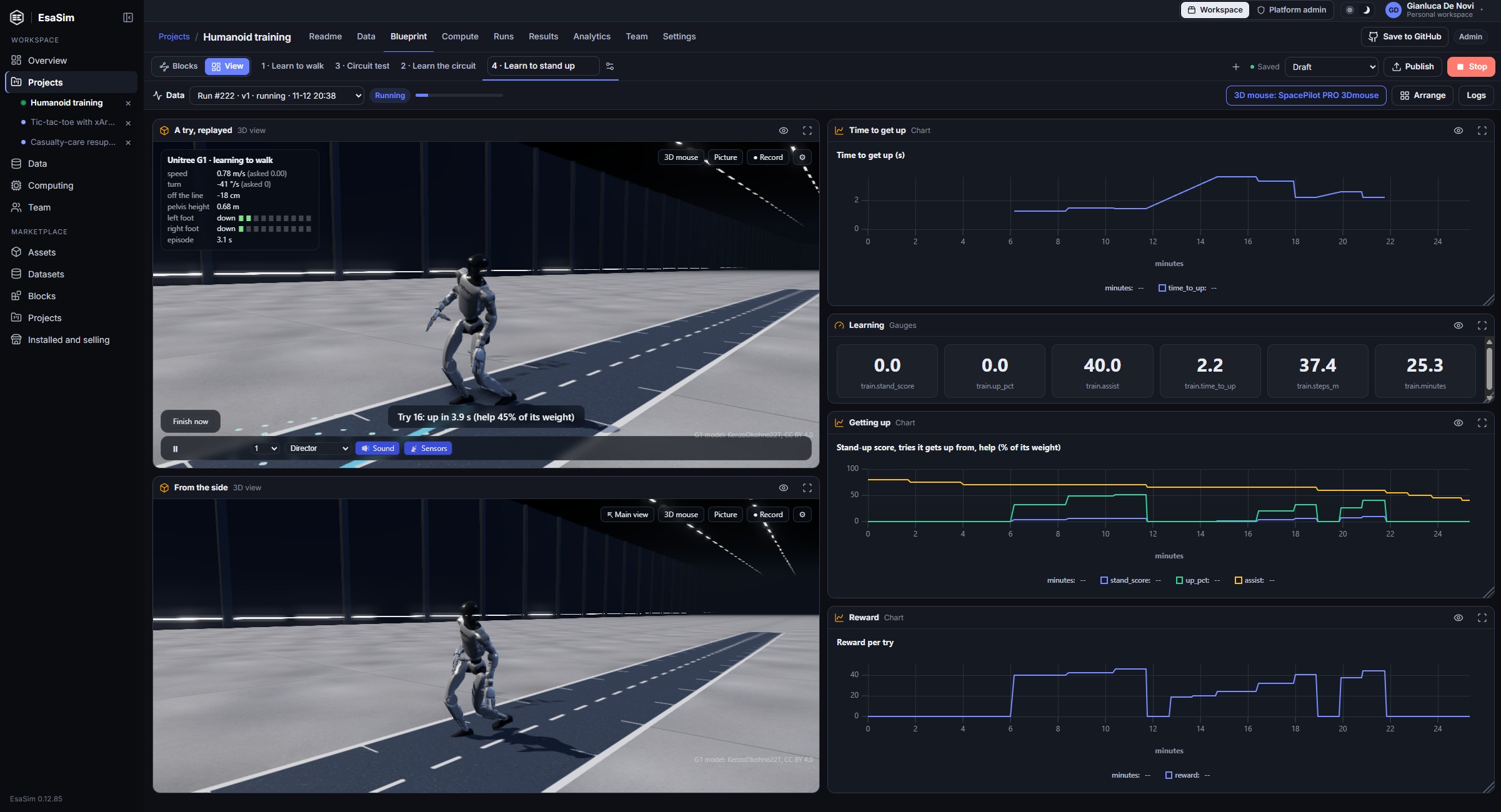
Each block that shows something (a chart, the 3D view, a table, metrics, pictures, video, text or a view of your own) appears on the View page as soon as it is on the grid. Arrange the views by dragging them, resize them, and the layout is saved with the flow.
Pick a run to see its results, follow one live while it runs, or arrange the page with sample data before the first run.
- Charts, tables and metrics that fill in while the run goes on
- A 3D view that replays simulated runs with a timeline and a follow camera
- Views run sandboxed in the browser, without network access
Blocks
Blocks for every step of the loop
Each block does one thing. Worker blocks are Python and run on your workers; views are JavaScript and run in the browser.
Data
Dataset reads a version of a dataset where it lives. Library brings in free test data. Select files and Save as dataset write new versions with their lineage.
Simulation
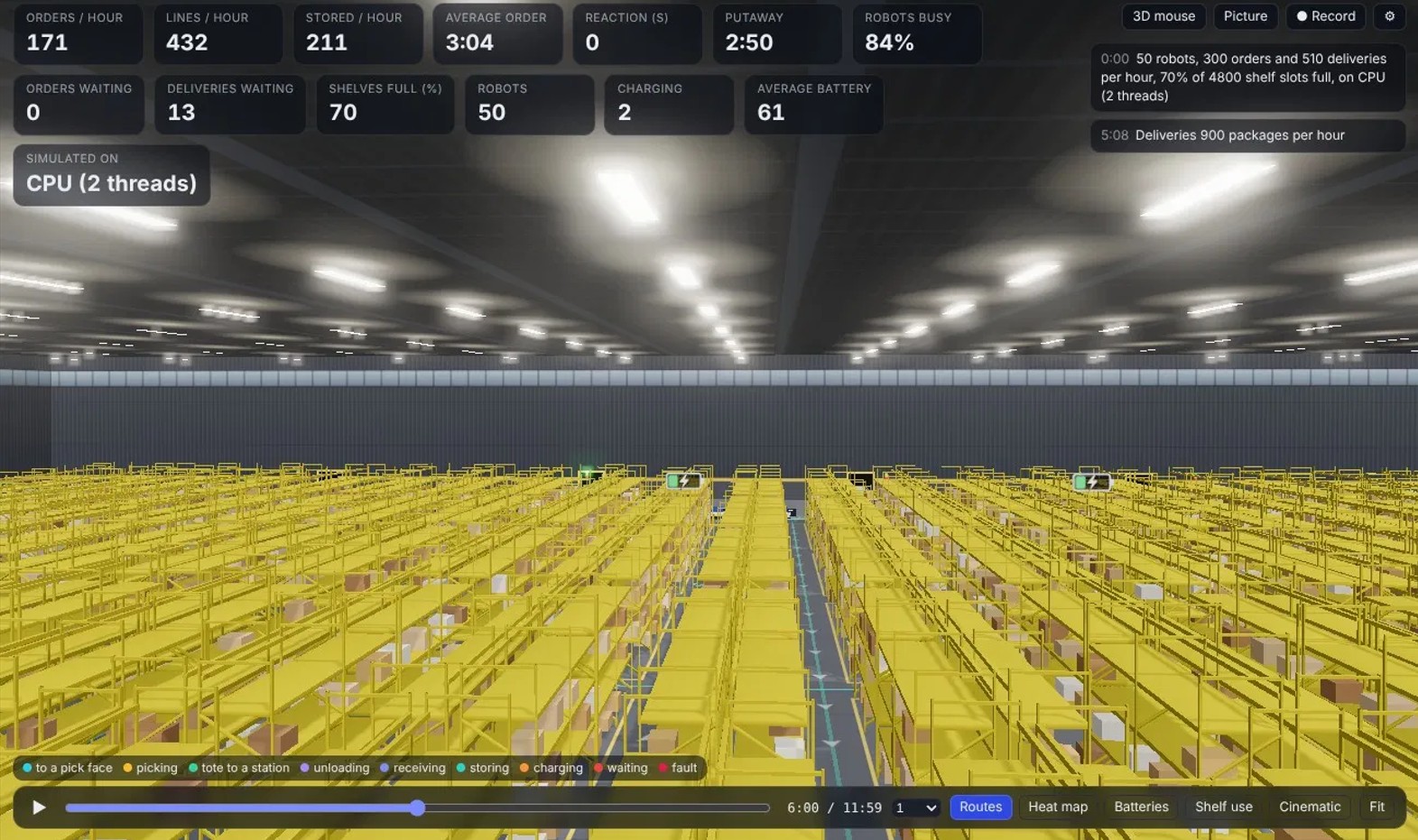
Landing sweep runs thousands of drone landings in parallel tasks; 3D scene sets each object's model and trajectory; Render makes frames and videos on a worker; Download files, Hugging Face dataset, Image quality check, Find duplicates, Embed images, Check labels and Curate and split clean an image collection into a training-ready set, and Publish to Hugging Face shares it; Warehouse fleet runs a warehouse of mobile robots live (deliveries in, orders out, batteries, incidents) and Fleet-size sweep and Warehouse layouts compare fleets and layouts in batches, on a CPU, an NVIDIA GPU or Tenstorrent cards; Accelerator benchmark checks a worker. Your own simulators fit in a Python block.
Processing
Python script, Filter table and Merge, with any package installed on the worker, or in a Docker image you choose.
AI
An LLM block (EsaSim models billed per token, or your own key) and an Agent that reviews files, images and logs and records a label and its reasoning for each. Text to image and Text to video make pictures and short clips with open models on your own GPUs.
Medical imaging
Read medical images checks CT and MR scans, Labels to 3D models turns segmentations into coloured anatomy and STL files, and Soft body model makes the organs move under gravity in the 3D view.
Live
Telemetry streams the values running blocks report, every few seconds, to the views.
Views
Chart, 3D view, Table, Metrics, Images (with live pictures), Video, Video review and Review grid (keep or remove each item), Gauges, Run timeline, Controls, Text and Sound, each sized for the View page.
Your own blocks
When a block does not exist, make it
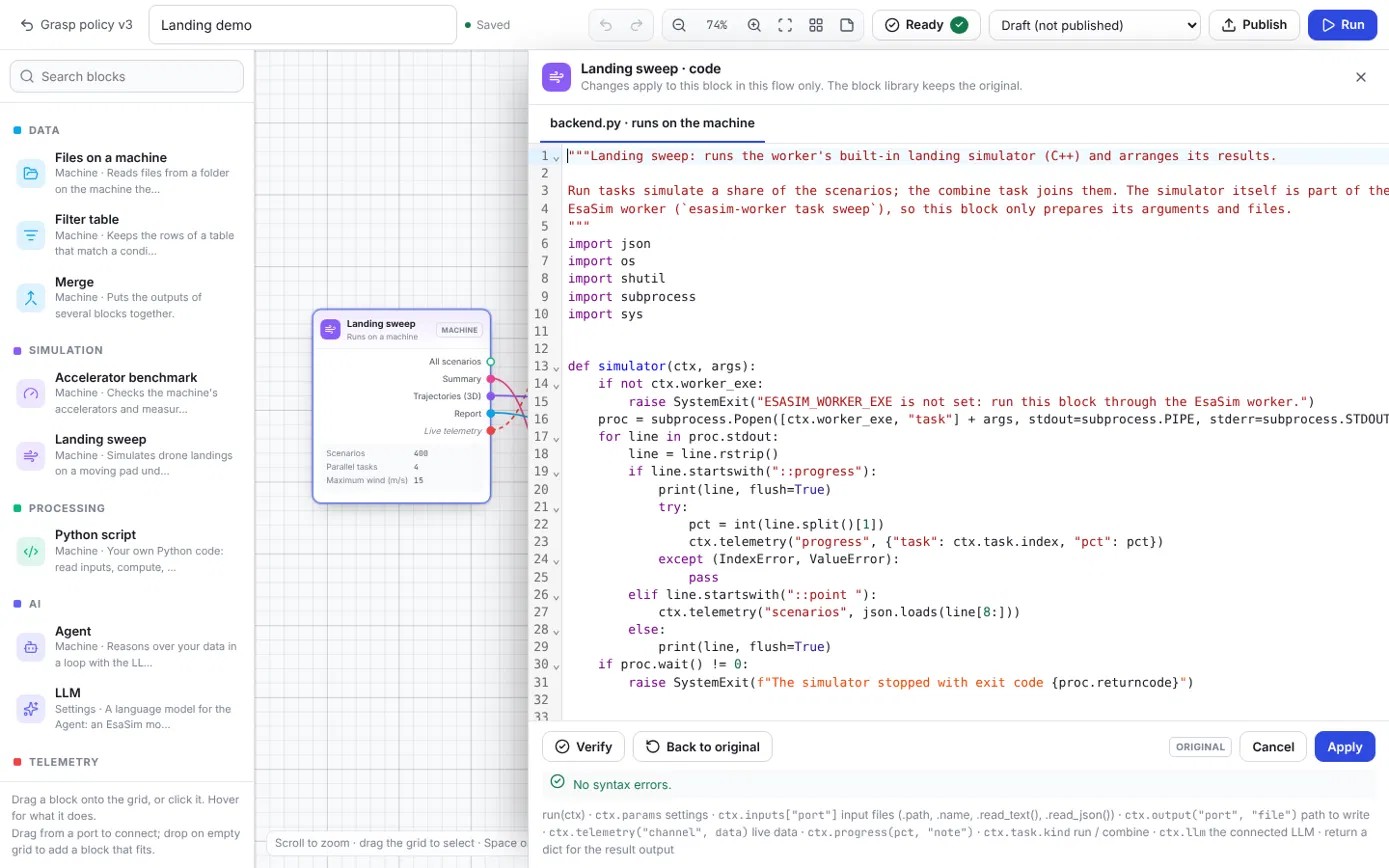
The block builder makes a block for your workspace: its inputs and outputs with their formats, its settings and its code. Start from a Hello world or from the code of a shipped block, check it with Verify, and it appears in the block menu of every project. Its code starts with a header written from its definition: ports, formats, settings, workspace and author.
Share a block with every EsaSim workspace after the EsaSim team has reviewed its code, or save its versions to a GitHub repository. An AI assistant connected over MCP can write blocks and flows for you.
- Python for worker blocks, JavaScript for views
- Each save is a new version; runs record the one they used
- API keys pasted in blocks are stored encrypted and sent only to the worker that runs the block
3D view
Watch it live, then walk around the replay
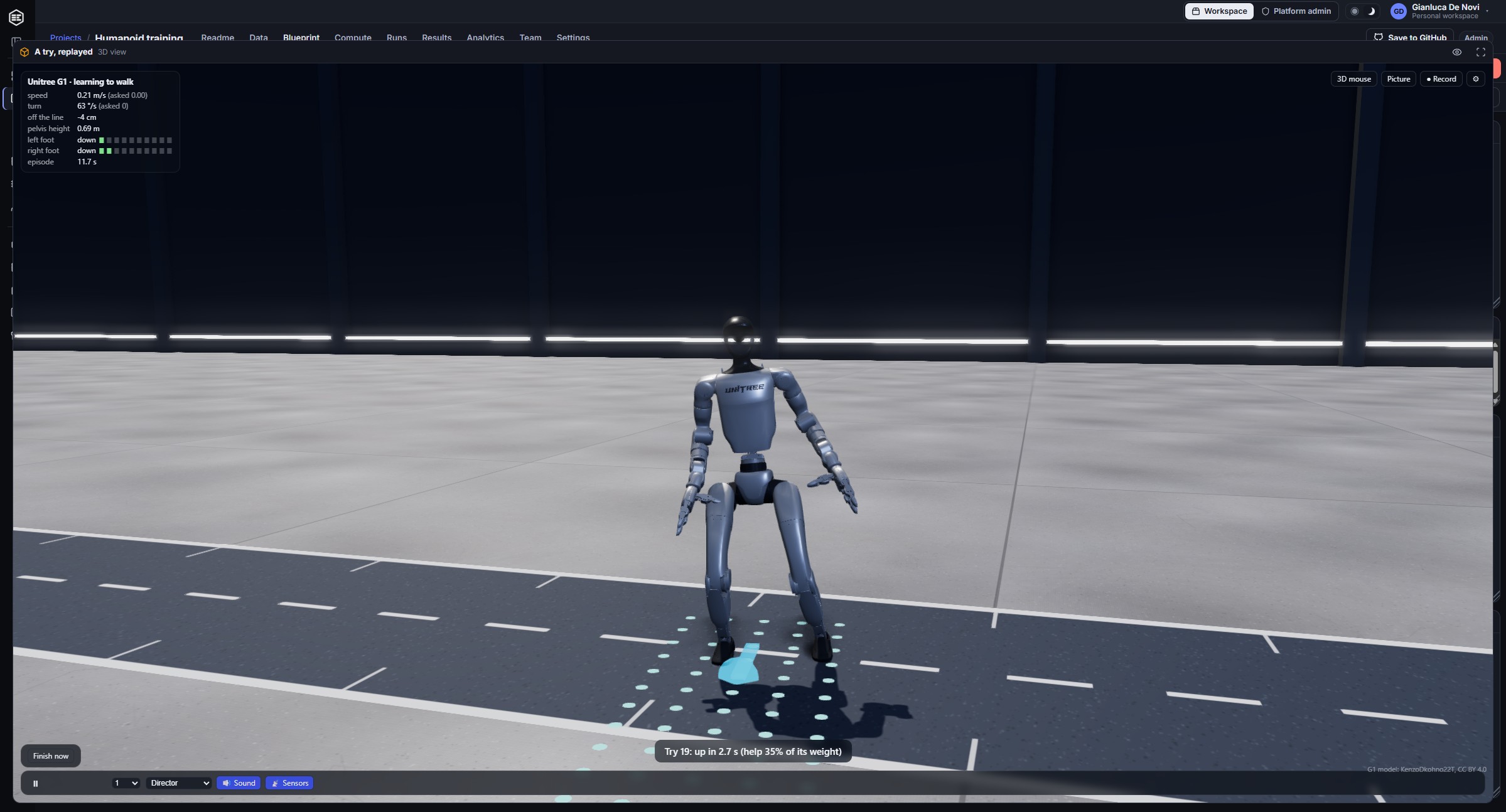
While a run goes on, the 3D view moves the bodies a block streams (a drone, a pad, your robot) smoothly and at real speed. When it ends, it replays the recorded runs: ground, entities and trajectories, with physically based materials, soft shadows and a camera that keeps the action in frame or rides behind it. It loads glTF, OBJ, STL and PLY.
It also draws warehouse fleets on a grid world, anatomy that sags and sways, and rocket launches and booster landings at Earth scale, with cameras on board. The 3D scene block says which model each object uses and which trajectory it follows: a shape, a file from the EsaSim library or your own, and a table of positions and angles, an object of a simulated run, or live positions. Fly the camera with a 3D mouse, save pictures and record videos of the replay up to 4K.
- 3Dconnexion SpaceMouse: the camera moves and turns on all six axes
- Pictures in PNG, JPEG or WebP; videos in MP4 or WebM, in real time or frame by frame
- Keep them in a dataset or download them
Render
Render the scene on your workers
The Render block turns the same scene into frames and a video on one of your workers, without a browser: with Blender (Cycles, on the GPU when there is one) when it is installed, or with its own renderer in Python. Choose the size, the frame rate, the camera (follow, orbit, fixed or top) and the format: PNG or JPEG frames, MP4, WebM or GIF.
While it works, a small copy of the latest frame reaches the View page every second or so, so you can see the render take shape. The frames can go straight to a dataset.
- Runs on a workstation, a headless server or a GPU box
- One video per run of the scene, or only the one you pick
- Not the 3D view: nothing has to stay open while it renders
Common questions
Where does the code run?
Worker blocks run on the computers your project may use, through the EsaSim worker, with the computer's Python or in Docker. Views run in your browser in a sandboxed frame. Nothing runs on EsaSim's servers unless you choose EsaSim Cloud when it is available.
Can I run a flow again exactly?
Yes. Publishing keeps a numbered version that never changes, every run uses one, and a Dataset block can read a fixed version of a dataset.
Does a team see who changed what?
Flows keep their versions with who published them; notes on the grid show who wrote them and who changed them last.
Will I know a run is going to fail before I start it?
The console at the bottom of the editor lists the flow's problems as you edit and checks the workers and data before a run: missing accelerators, old workers, offline or busy workers, data a project may not use. During the run it shows the errors and the log live, by block.
Is it included in my plan?
Blueprints run on your own workers on every plan. Models billed by EsaSim use your prepaid credits.
Build your first flow
Start free, pair a worker and open a project's Blueprint tab: the drone landing template runs in minutes.