

Docs / Guides
3D scenes and rendering
Say which model each object uses and which trajectory it follows, replay the scene in the 3D view, and render it on a worker into pictures and videos.
Three blocks, one scene
A 3D simulation in a flow has three parts, each a block:
| Block | Where it runs | What it does |
|---|---|---|
| 3D scene | On a worker | Says which model each object uses and which trajectory it follows. Its output is one scene (scene.json, format esasim.scene/1) with the model files. |
| 3D view | In the browser | Replays the scene, or shows positions live while a run goes on. You move the camera (mouse, touch or a 3D mouse), save pictures and record videos in the browser. |
| Render | On a worker | Renders the scene into frames (PNG or JPEG) and a video (MP4, WebM or GIF), without a browser, with Blender when it is installed or with its own renderer. It sends a small copy of the latest frame while it works. |
Both the 3D view and Render read the same scene, so what you see in the browser is what the worker renders. The 3D scene, rendered on a worker template wires all of it: Landing sweep, 3D scene, a 3D view, Render, a Telemetry block with live frames in an Images view, and a Video view.
The 3D scene block
Its Objects setting is a table with one row per object. Add an object adds a row; each field suggests values from what is connected (the 3D files of Models, the tables of Trajectories, the objects of a connected scene).
| Column | What to put |
|---|---|
| Name | The object's name, used in the scene and by the cameras (for example drone). |
| Model | A shape: quadrotor, pad, box, sphere, cylinder, arrow; or the name of a 3D file connected to Models: GLB, glTF, OBJ, STL or PLY (from a Library block, a dataset or another block). |
| Trajectory | Where its positions come from (below). Empty: it stays at its fixed position. |
| Columns | For a table: the names of its columns for time, x, y, z, then optionally roll, pitch, yaw (or qx, qy, qz, qw). Default t,x,y,z. |
| Fixed position | x,y,z: where it stands, or an offset added to its trajectory. |
| Turn the model | roll,pitch,yaw, in the unit of Angles: turns the model in its own frame, to match a file made with other axes. |
| Scale, Colour | Size factor; the colour of a shape (and of a 3D file without colours of its own). |
Trajectories
- A table: the name of a CSV, TSV, JSON (a list of rows) or JSON lines file connected to Trajectories. One file can hold several objects: add
#column=valueto keep some rows, for examplerobots.csv#id=r1. Positions are linear between rows; orientations from roll, pitch, yaw (applied in that order) or from a quaternion. - An object of a connected scene:
scene:dronetakes the drone of a scene connected to Trajectories, for example the Trajectories (3D) output of the Landing sweep, with all its runs. - Live:
live(orlive:channel) places the object where a running block reports it, in the 3D view, from items such asctx.telemetry("pose", {"t": 1.25, "drone": [x, y, z]}).
The other settings say how to read the data: the up axis (z or y), the units of positions (metres, centimetres or millimetres) and of angles (degrees or radians), the environment of the 3D view and a title. When the trajectories come from a scene with several runs, the output keeps them as runs; otherwise it has one run over the times of the tables.
The 3D view
Connect the scene to a 3D view to replay it in the browser: play, pause and scrub the timeline, change the speed, pick a run, Follow an object or Fit the view. It reads 3D files directly too (meshes, or point clouds drawn as points) and positions streamed live. A 3Dconnexion SpaceMouse flies its camera on six axes; Picture and Record save pictures and videos from the browser. See Blueprints for the details.
Controls, numbers and events on top of the view
The 3D view can also drive the run it shows. Controls takes the same lines as the Controls view (button LABEL, slider NAME MIN MAX START [STEP], select NAME a,b,c, switch NAME, text NAME) and one more, pick NAME: press it, then click the floor, and the view sends NAME with the place clicked (a cell of a grid world, else metres). They appear in a bar over the view and send {"control": NAME, "value": …} on the control channel while the run goes on, like the Controls view; a control named like a field of the live data follows that field's value. Numbers shows live fields as tiles (kpi.orders_h=Orders / hour, kpi.avg_order_s=Average order:time, kpi.utilization=Busy:%), and the texts of the Events channel appear on the right.
Fleets on a grid world
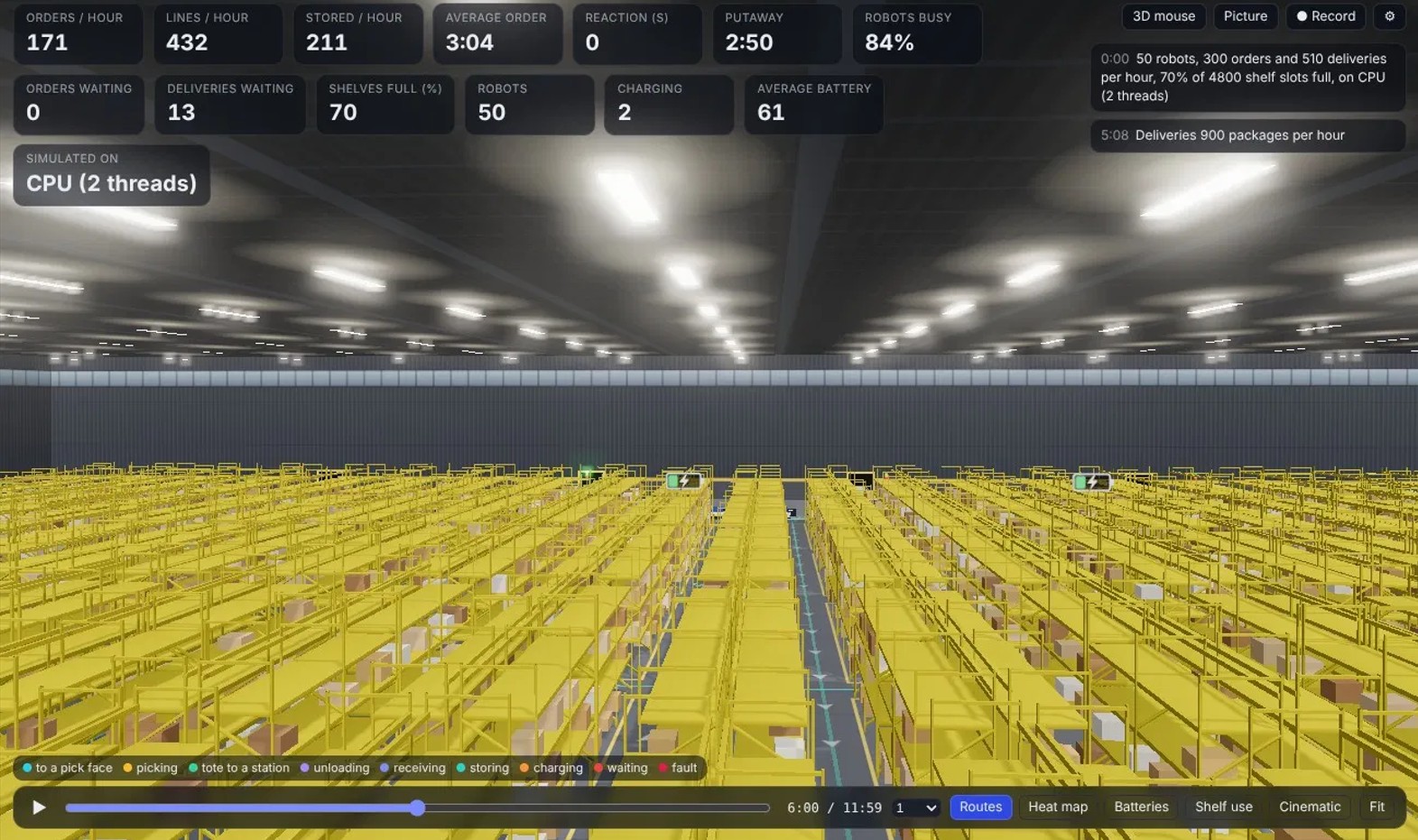
A block that streams a grid world (an item with "format": "esasim.warehouse/1": cells, one-way moves, racks, stations, docks) and its robots at every step (fleet items) is drawn as a hall: racks, desks and pallets come from the 3D files wired in by name (rack_d, rack_e, rack_f, desk, pallet_jack, goods_a, bin, amr for the robot), simple shapes stand in without them. The robots move smoothly a couple of seconds behind the run, their light strip shows what they do, Routes draws the route each one plans and Heat map colours where they wait; the tote on each robot shows the items in it, and the item travels from the shelf into the tote while the robot picks and from the tote to the station's desk while it is unloaded, with a ring on the floor that fills as it goes; Batteries shows every robot's charge as a battery icon (robots going to charge or charging always show it, with a bolt while charging). The heat map goes from blue (a little waiting) to red (a lot). A layout item can list incidents ({"id", "kind": "spill" or "fault", "cell": [x, y], "since", "help_at", "until", "robot"}, times in the run's seconds): the view draws a turning amber beacon, the spill (or the stopped robot, flashing red), the person once help has come, and how long is left; closed lists every cell routes must avoid, blocked the ones closed by hand (drawn with pallets and cones). Stations on the north side of the hall (station_sides) get their desk on that side. Click a robot to follow it: a card tells what it does, how far along, what its tote holds and its battery. Cinematic gives a slow orbit. When the run has ended, it plays back on the timeline. The Warehouse Fleet example (Warehouse models, Warehouse fleet and a 3D view) shows it all.
Any block can stream a fleet this way. A fleet item is {"t", "dt", "n", "off", "k", "f"}: f holds frames dt seconds apart from t, each n robots × k little-endian 16-bit numbers in base64: the cell (off or more: not on the floor), heading + 4 × state, the target cell, and with k = 4 the battery in % + 128 × the items in the tote. States: 0 idle, 1 going to pick, 2 picking, 3 to a station, 4 unloading, 5 going to charge, 6 charging, 7 parked away, 8 stopped by a fault. The layout's pick_s and station_s set how long the pick and unload animations last.
Inbound flow, real stock and the building
A layout can also have receiving stations (infeeds, infeed_sides, infeed_queues) and shelf slots: faces ([x, y, mask] per pick face, mask 1 for a rack on the west, 2 on the east), levels, bay (metres of rack served by one face) and slots (their number). The slots are numbered face by face, then west before east, then level, then place along the rack. Then the view draws a roller conveyor at each receiving station, coming in through the wall, with the deliveries waiting on it, and one from each pack-out desk out through the wall, where the packed orders leave; the racks show only their frames and every package on them is the run's own. With k = 5 the fifth number of a robot is the slot it picks from or stores to (65535, or the number of slots or more: none). States 9 to 12 are going to a receiving station, loading deliveries (one every load_s), taking packages to a shelf and storing one (put_s). A stock item ({"t", "s", "v", "inq", "use"}) gives every slot in 2 bits (0 empty, 1 to 3 the class A, B, C of the package there, packed four to a byte, base64), the deliveries waiting at each receiving station, and now and then how often each face was used (16-bit numbers, as in fleet frames); between two stock items the view follows the picks and stores in the frames, so a package leaves its slot when it is picked and appears when it is stored. Shelf use colours each face on the aisle floor by how often it was used (blue: rarely, red: most) and the packages by class. The robot you follow names the slot it picks from or stores to.
The hall has walls and a roof that are drawn only from inside: from outside you look into the hall over the walls nearest to you, and from inside (fly in with the 3D mouse, or zoom in) you see the whole building, the window band and the lights on the ceiling. Openings in the walls let the conveyors through. Fleet runs made before all this still play as they did.
Rocket launches and landings
A block that streams a flight (telemetry items with "format": "esasim.rocket/1") is drawn at Earth scale: the launch pad on the coast, the sea out to the curved horizon, a drone ship that heaves and rolls, and a sky that darkens with height until the stars come out. The booster flies as recorded, with its grid fins, legs and nine engines. Its plume widens as the air thins, the entry burn wraps it in fire, and the landing burn lights the deck. You also see steam and a launch cloud at lift-off, ice falling from the tanks, condensation at Mach 1 and thruster puffs. After separation, the second stage fires its own engine and drops its fairing halves.
- Cameras: the buttons in the bar orbit the booster, the second stage, the ship or the pad as they move. Tracking follows the booster with a long lens from the ground, and Free leaves the camera where you put it; the 3D mouse flies it.
- Cameras on board: the Camera setting fixes a view on the interstage, the engines, a grid fin, the second stage, the ship's deck or the tracking camera. Put several 3D views of the same flight side by side on the View page; Main view shows that camera in the view with the controls.
- Sound and broadcast: engines, the sea and an optional commentator, and a broadcast overlay with speed and altitude. Record keeps them in the video.
- Stop freezes every view where it is.
An item gives the booster's frames as [t, x, y, z, qx, qy, qz, qw, …] (metres, x east, y north, z up: its centre of mass and attitude, then engines, thrust, gimbal, fins, legs and the other fields it lists in fields), the ship and pad positions, the second stage's frames, and the times of main engine cut-off and separation. The view draws the world around the camera's focus, so a 700 km flight keeps centimetre precision.
What the project gives the view
The 3D view is the same for every project: it draws what the project gives it. Data comes through its inputs (a scene, 3D files, telemetry); the 3D models, textures and sounds it draws with come from the project's assets (Data › Assets), found by name: replace models/forklift.glb there and every view of the project shows the new forklift. A view's own code reads them with ctx.assets.
Robots
A robot model (esasim.robot/1, a .robot.json or .robot.json.gz file wired to the view or kept in the assets) is a list of joints and the mesh each one moves:
{"robot": "Two arms", "units": "mm", "angle_units": "deg", "tool": "right6",
 "joints": [{"name": "lift", "type": "prismatic", "axis": [0, 0, 1], "xyz": [0, 0, 80]},
            {"name": "left0", "parent": "lift", "xyz": [-130, 0, 260], "rpy": [0, 1.2, 0], "axis": [0, 0, 1]}, …],
"links": [{"v": [x, y, z, …], "f": [a, b, c, …], "color": "#8e959f"}, …]}- Any number of joints. Without
parenteach joint hangs on the one before (a serial arm); with it, any tree: hands, legs, several arms on one body. Types:revolute(the default),continuous,prismatic(a lift, a rail) andfixed. links[0]is the base;links[i + 1]moves withjoints[i].base(xyz,rpy) places the robot;toolnames the joint that carries the tool of the scene.- The block that moves it sends the joints channel:
{"j1": 12.5, "j2": -30, …},{"q": [12.5, -30, …]}or{"joints": {"lift": 150, "left0": 12.5}}, in degrees, or with"units": "rad"; a prismatic joint's value is a length in the model's units. A value missing from an item keeps that joint where it was. - Several robots: wire each model in; items name theirs with
"robot": "Two arms"(an item without it moves the first), and a{"kind": "robot", "robot": "Helper", "pos": […], "rpy": […]}object of the scene channel places each. The twin channel poses a see-through copy of each.
Several 3D views on one page. Each 3D view has its own copy of the scene, its textures included (a warehouse: about 250 MB of graphics memory). Views set to Quality balanced or fast, such as a robot's camera beside the main view, draw their textures at most 512 px wide, about a third of the memory, so a page of several views stays within what the browser's graphics can hold. Keep the main view at high.
The Render block
Render runs on one of your workers, as a task of the run, so it works the same on a workstation, a server without a screen or a GPU box. Connect a scene (or the Landing sweep's trajectories directly) to its Scene input.
Engines
- Blender (Cycles): realistic light, soft shadows, the materials and textures of glTF models. Used when Blender is installed on the worker (on the PATH, in its usual folder, in
ESASIM_BLENDERor the Blender program setting). It uses the worker's GPU when Cycles finds one (OptiX, CUDA, HIP, Metal or oneAPI), otherwise the CPU. - Built-in: Python with numpy, quick and simple: flat shading, a ground grid, soft shadows under objects, smooth edges. Used when Blender is not there, or when you choose it.
Engine = auto picks Blender when it can. With Install missing Python packages on (the default), the block installs numpy and Pillow, and imageio-ffmpeg if the worker has no ffmpeg, with pip into ~/.esasim/python, never into the system's Python.
What it renders
- Runs to render: the first run, all of them (frames in one folder per run, one video per run) or a given number.
- Size, frames per second and speed (seconds of the run per second of video), from and to a time of the run.
- Camera: follow rides behind an object, turning with its heading; orbit circles it; fixed stays at Camera position (or a place that frames the whole scene) and keeps the object in view; top looks down on the scene. Camera looks at names the object (by default a drone if there is one, otherwise the first object that moves); Camera distance and Field of view frame it.
- Quality (Blender: samples per pixel; built-in: smoother edges), background (sky, studio or night), the objects' paths drawn as lines, and the run and time written in a corner.
What it makes
- Frames:
frame_00001.png, … (or JPEG). Outputs go to can send them to a dataset as they are made: a folder on a worker, a bucket or a cloud drive. - Video: MP4 (H.264), WebM (VP9) or GIF, made with ffmpeg. Show it with a Video view, or open it in the run's results.
- Live frames: while it works, a small JPEG of the latest frame goes to its Live telemetry output on channel
frame, twice a second at first and less often in long renders. Wire it into a Telemetry block (channelframe) and an Images view: the newest frame shows on top, with its number and a progress bar.
Rendering takes time on a CPU: a few frames per second at 720p with the built-in renderer, seconds to minutes per frame with Blender depending on the quality and the worker. Try a short span at preview quality first.
The scene format
A scene is JSON. You can write one from any block (Python: ctx.write_json("scene", "scene.json", {...})) and give it to the 3D view and Render.
{
  "format": "esasim.scene/1",
  "up": "z",
  "entities": [
    {"id": "drone", "shape": "quadrotor", "size": 0.55},
    {"id": "robot", "model": "robot.glb", "model_size": 0.8, "color": "#d0452f"},
    {"id": "tower", "shape": "box", "size": [1, 1, 6], "position": [10, 0, 3]}
  ],
  "runs": [
    {"label": "Run 1",
     "fields": ["t", "drone.x", "drone.y", "drone.z", "robot.x", "robot.y", "robot.z", "robot.qx", "robot.qy", "robot.qz", "robot.qw"],
     "frames": [[0.0, 5, 0, 8, 0, 0, 0, 0, 0, 0, 1], [0.1, 4.9, 0, 7.9, 0.1, 0, 0, 0, 0, 0.05, 0.999]]}
  ]
}- Positions are in metres in the scene's axes (
"up": "z"or"y"); orientations are quaternionsqx, qy, qz, qwin the same axes. An object without them keeps its fixed orientationq; a quadrotor without them leans into its acceleration, as a real one does. - 3D files are read with y up, the convention of glTF; a model is centred and scaled to
model_sizeacross (0 keeps its own size), or to the size of its shape. - The 3D view shows a run's
info(numbers about the run) in its head-up display, and awindfield of the frames as moving streaks.