

Docs / Workers
Shared GPU servers
Install the EsaSim agent on a Linux server with NVIDIA, AMD, Intel, Huawei Ascend or Tenstorrent accelerators and Docker.
In development. The server mode of the EsaSim worker (compute units, one Docker container per job) comes in a later release. You can already register servers, create install tokens and define compute units in the dashboard. The steps below describe the planned release. To run jobs on a server today, set it up as one of your workers.
A server worker runs on a Linux computer with one or more accelerators: NVIDIA, AMD, Intel, Huawei Ascend or Tenstorrent. You split the server into compute units, and every job runs in a fresh container limited to its unit. A unit holds accelerators of one vendor only, because each container uses one driver stack. Server workers require the Pro or Enterprise plan.
Requirements
- Linux on x86_64 (Ubuntu 22.04 or 24.04, RHEL 9 or compatible).
- One or more supported accelerators with the vendor driver installed.
- Docker Engine 24 or newer, with the vendor's container runtime or device access (see below).
- Root or sudo access for the installation.
- Outbound HTTPS (port 443) to esacode.com.
Prepare the accelerators
Install the driver and the container support for your hardware following the vendor's instructions, then check that the host sees every device. The agent runs the same checks and reports the result on the server page.
| Vendor | Software | Host check | Containers |
|---|---|---|---|
| NVIDIA | Driver 535+, CUDA 12 | nvidia-smi | NVIDIA Container Toolkit; test with docker run --rm --gpus all nvidia/cuda:12.4.1-base-ubuntu22.04 nvidia-smi |
| AMD | amdgpu driver, ROCm 6 | rocm-smi or amd-smi | Devices /dev/kfd and /dev/dri passed to the container |
| Intel | Data Center and Arc GPUs: oneAPI / Level Zero. Gaudi: Intel Gaudi software | xpu-smi discovery (GPUs), hl-smi (Gaudi) | /dev/dri for GPUs; Habana container runtime for Gaudi |
| Huawei Ascend | Ascend driver and CANN toolkit | npu-smi info | Ascend Docker Runtime |
| Tenstorrent | tt-kmd driver, TT-Metalium, hugepages | tt-smi | /dev/tenstorrent devices and hugepages passed to the container |
Each workload preset states which vendors it supports. Isaac Sim and Isaac Lab need NVIDIA RTX hardware; MuJoCo and the benchmark run on every vendor, and light MuJoCo jobs run on CPU only.
Install the agent
- In the dashboard, go to Computing > My computing > Add a shared GPU server and enter a name for the server.
- Copy the install command. It contains an install token for this server.
- Run the command on the server as a user with sudo rights.
- Wait for the server to appear as online in the dashboard with its GPUs listed.
The command has this shape:
curl -fsSL https://esacode.com/install/server.sh | sudo bash -s -- --token <INSTALL_TOKEN>Treat the install token like a password. Anyone with it can register a worker as your server. Do not commit it to a repository or paste it in shared channels. If it leaks, remove the server in the dashboard and create a new one.
What the installer does
- Checks the operating system, architecture, Docker, and the driver and container runtime of each accelerator vendor it finds.
- Installs the EsaSim agent as a system service that starts at boot.
- Exchanges the install token for the server's own credentials.
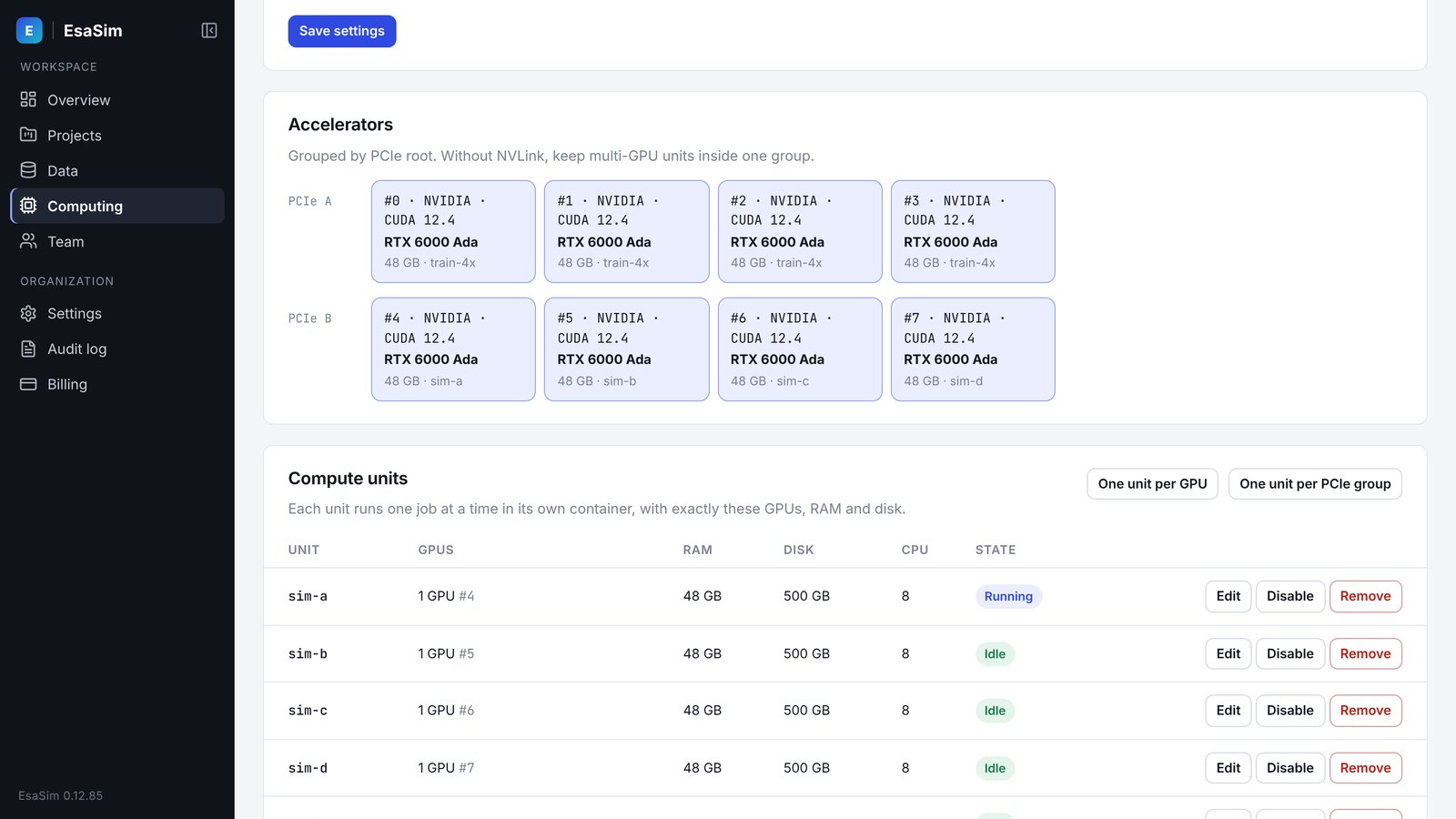
- Discovers each GPU's model, memory, UUID and PCIe position and reports them to the dashboard.
After installation, open the server in the dashboard and define compute units. Jobs on a server run inside a unit, so create at least one.
Firewall
The agent needs outbound HTTPS on port 443 only. It opens no listening ports. You do not need inbound rules, port forwarding or a public IP address. If your network uses an egress allow list, allow esacode.com on port 443. Containers also need outbound access to pull their images, unless you mirror images internally.
Updating
The agent receives signed updates automatically. The installed version is shown on the server's page in the dashboard.
Removing
- Cancel or wait for running jobs on the server.
- In the dashboard, open the server and choose Remove server. This revokes its credentials and deletes its compute units.
- On the server, stop and remove the agent service. The exact uninstall command will be documented with the release.
- Remove leftover job containers, images and data volumes with Docker if you no longer need them.