

Docs / Teams and account
Security settings
Two-factor authentication, session timeout, allowed IP ranges, audit log and signed-in devices.
This page covers security settings for your own account and for organizations. Organization settings are under Organization > Security and are available to owners and admins on the Enterprise plan.
Two-factor authentication
For your account
Turn on 2FA under Account > Security. EsaSim uses time-based one-time passwords (TOTP) from an authenticator app.
- Choose Turn on two-factor authentication.
- Scan the QR code with an authenticator app, or enter the secret key manually.
- Enter the 6-digit code from the app to confirm.
After this, signing in asks for a current code after your password.
Enforced for an organization
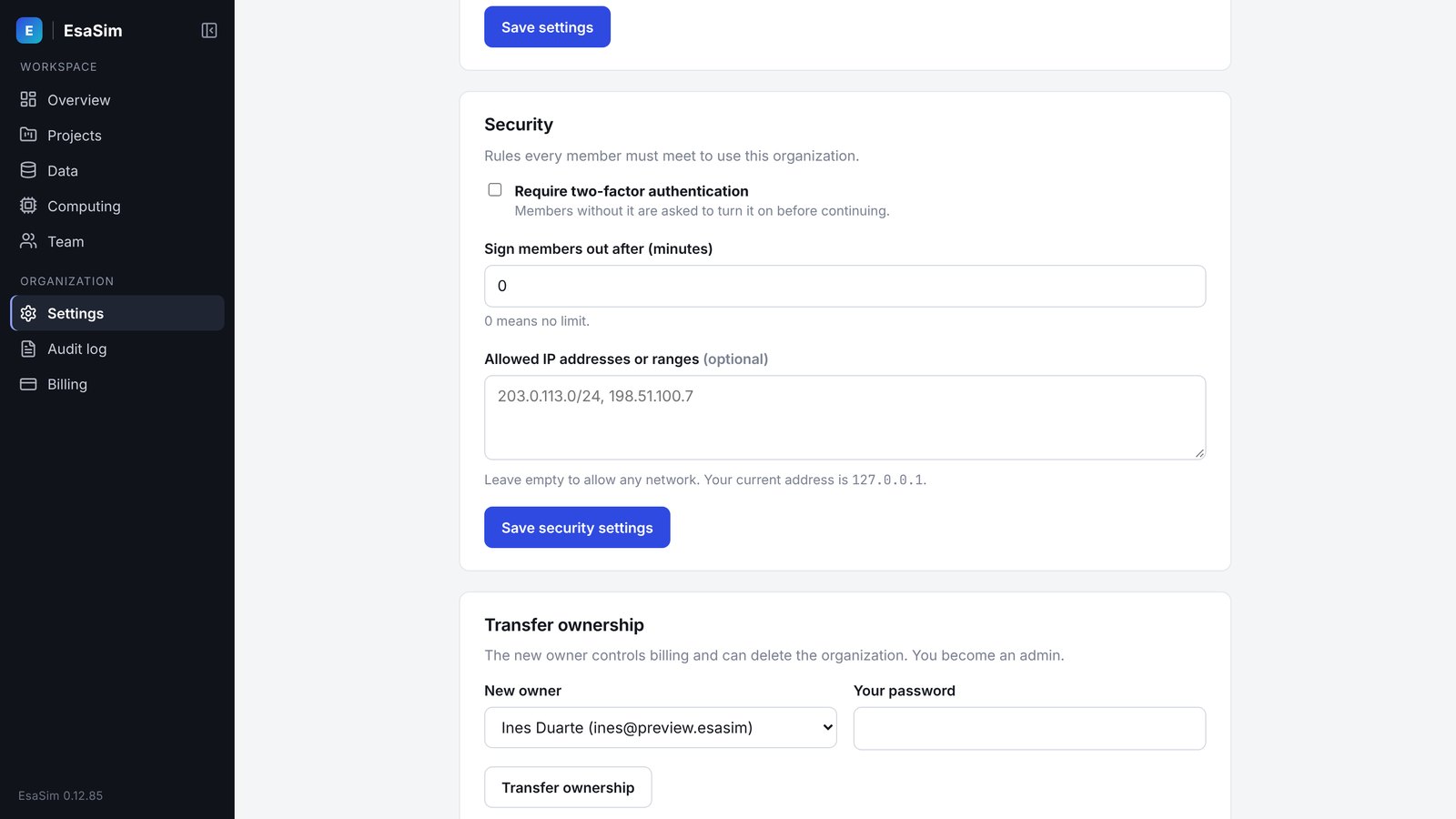
Owners and admins can require 2FA for every member. Turn on Require two-factor authentication under Organization > Security.
- Members without 2FA must set it up before they can open the organization.
- New members set it up when they accept their invitation.
- Turn on 2FA for your own account before you enforce it.
Session timeout
The session timeout signs members out after a period of inactivity in the organization. Set it under Organization > Security. Shorter timeouts reduce the risk from unattended workers. Choose a value that fits how your team works.
Allowed IP ranges
You can restrict access to the organization to specific networks. Enter one or more ranges in CIDR notation. Requests from other addresses cannot open the organization.
| Entry | Meaning |
|---|---|
203.0.113.10/32 | A single IPv4 address. |
203.0.113.0/24 | The 256 addresses from 203.0.113.0 to 203.0.113.255. |
198.51.100.0/22 | The 1024 addresses from 198.51.100.0 to 198.51.103.255. |
2001:db8:1234::/48 | An IPv6 network. |
Use the public addresses of your office, VPN exit or campus network, not private addresses such as 10.0.0.0/8 or 192.168.0.0/16.
Lock-out safeguard. EsaSim will not save a list that excludes the address you are using to save it. This prevents you from locking yourself out. If you change networks, add the new range before you remove the old one.
Audit log
The audit log records security-relevant and administrative events in the organization. Examples include sign-ins, invitations, role and permission changes, security setting changes, worker registration, API token creation and billing changes.
Each entry shows the time, the member who acted, the action, the affected object and the source IP address. Owners and admins open it under Organization > Audit log. Filter by member, action or date range.
CSV export
Choose Export CSV to download the entries matching the current filter. Use the export to archive records or to load them into your own tools.
Signed-in devices
Account > Security lists every browser and device signed in to your account, with its last activity time. Revoke any session you do not recognize. Revoking signs that device out immediately.
If you see a session you do not recognize, revoke it, change your password and check that 2FA is on. Report suspected account compromise to security@esacode.com.