

Docs / Workers
Compute units
Split a multi-GPU server into isolated slices of GPUs, RAM, disk and CPU cores for different workloads.
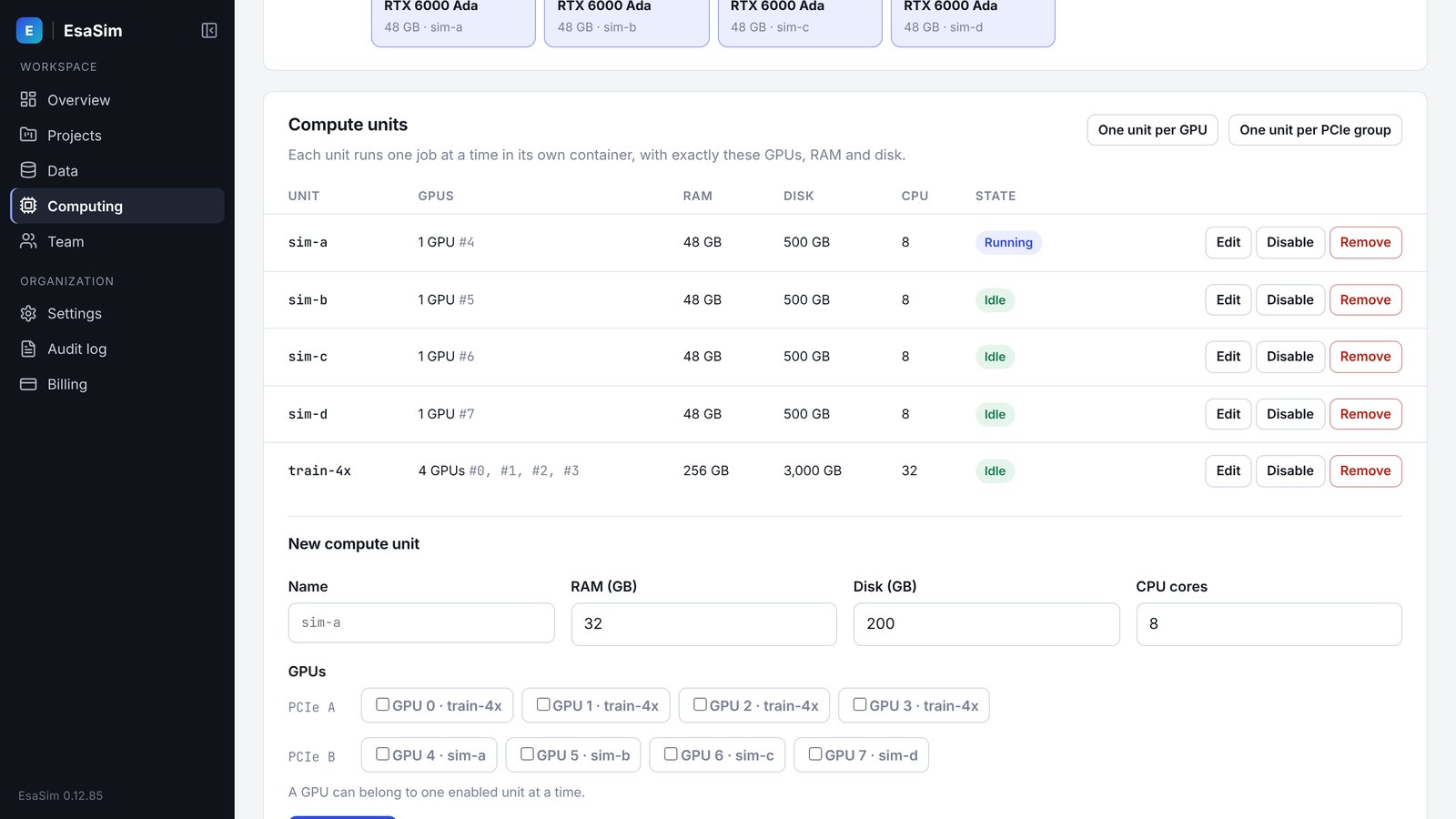
A compute unit is a named slice of a server worker. It has a set of GPUs, an amount of RAM in GB, an amount of disk in GB and a number of CPU cores. Every job on a server runs in a fresh container limited to one unit. You define units in the dashboard after the server is registered.
In development. You can define compute units today. Container enforcement of unit limits starts with the server mode of the EsaSim worker, in a later release.
Why units exist
A large server is often shared between workloads with different shapes. RL training benefits from several GPUs on one job. Simulation sweeps run many independent instances that each use one GPU. Units let you fix this split once, so that jobs do not compete for the same GPUs.
Example: an 8-GPU server
Consider a PCIe-only server with eight GPUs, two CPU sockets, 1024 GB of RAM, 16 TB of local disk and 128 CPU cores. One practical split:
| Unit | GPUs | RAM (GB) | Disk (GB) | CPU cores | Use |
|---|---|---|---|---|---|
train-4x | 0, 1, 2, 3 | 512 | 8000 | 64 | Isaac Lab RL training |
sim-a | 4 | 112 | 1800 | 14 | Isaac Sim or MuJoCo |
sim-b | 5 | 112 | 1800 | 14 | Isaac Sim or MuJoCo |
sim-c | 6 | 112 | 1800 | 14 | Isaac Sim or MuJoCo |
sim-d | 7 | 112 | 1800 | 14 | Isaac Sim or MuJoCo |
GPUs 0 to 3 sit under the first CPU socket in this example, so the training unit stays inside one socket. The remaining RAM, disk and cores are left for the host operating system and the agent. Simulation instances use one GPU each, so each simulation unit holds one GPU.
PCIe topology
On servers without NVLink, GPUs exchange data over PCIe. The path between two GPUs strongly affects multi-GPU training speed. Choose GPUs for a multi-GPU unit that are close to each other.
Reading nvidia-smi topo -m
Run this on the server:
nvidia-smi topo -mIt prints a matrix. Each cell describes the connection between two GPUs. From closest to farthest:
| Value | Meaning | For a multi-GPU unit |
|---|---|---|
NV# | Connected by NVLink with # links | Best. Not present on PCIe-only workers. |
PIX | At most one PCIe bridge between the GPUs | Best on PCIe-only workers. |
PXB | Several PCIe bridges, without crossing the host bridge | Good. |
PHB | Path crosses a PCIe host bridge, usually the CPU | Acceptable. |
NODE | Path crosses host bridges within one NUMA node | Slower. Avoid if possible. |
SYS | Path crosses the link between CPU sockets | Slowest. Avoid for multi-GPU units. |
Group GPUs that show PIX or PXB to each other. These are usually on the same PCIe switch. If no such group is large enough, stay within one CPU socket.
The dashboard reads each GPU's PCIe position from the agent. It warns when a unit spans PCIe groups. The warning does not block saving, because some workloads tolerate it.
Matching CPU cores and memory
The matrix also shows CPU affinity and NUMA affinity for each GPU. Give a unit CPU cores from the same socket as its GPUs where possible. This keeps data loading close to the GPUs.
Sizing RAM, disk and CPU
- RAM: simulation with rendering and RL with many parallel environments use a lot of host memory. Start with at least the total GPU memory of the unit, and more for data curation of large datasets.
- Disk: size for datasets, assets, checkpoints and rendered outputs. Rendered sensor data grows fast in scenario sweeps.
- CPU cores: simulation instances and data loaders need cores. Start with 8 to 16 cores per GPU and adjust from observed usage.
- Headroom: leave some RAM, disk and cores unassigned for the host and the agent.
Rules the dashboard enforces
- A GPU belongs to at most one unit.
- Every job runs in a fresh container limited to its unit's GPUs, RAM, disk and CPU cores.
- The dashboard warns when a multi-GPU unit spans PCIe groups.
- Multi-GPU units require Pro or Enterprise. Organization admins can also limit GPUs per member.