

Docs / Get started
Set up a worker
Install the EsaSim worker on any computer you run, here or remote, and set it up from the dashboard.
The EsaSim worker is the program that runs your jobs on your own computers. "Your own" means not on EsaSim Cloud: a laptop, a workstation under your desk, or a server in your office or data centre that nobody logs in to. You install it once. From then on you set the worker up from its page in the dashboard, without touching the worker again.
The worker connects out to EsaSim over HTTPS. Nothing connects to the worker, so it needs no open ports and works behind routers and company firewalls.
Version 0.10. Ready-made installers are not published yet, so the worker is built on the computer from its source code. One line downloads and builds it (the build script installs what it needs), one line pairs it. See also Downloads.
Requirements
- Operating system: Windows 10 or 11 (64-bit), Linux with systemd (for example Ubuntu 22.04 or 24.04, Debian 12, Fedora, RHEL 9), or macOS.
- Accelerators (optional): NVIDIA, AMD, Intel, Apple, Huawei Ascend or Tenstorrent, with the vendor driver installed. A worker can have several, of several vendors. Presets that need no accelerator also run on the CPU.
- Network: outbound HTTPS (port 443) to esacode.com.
- Disk: free space for job files in the data folder (at least 1 GB).
- Python: blocks run with the worker's own Python, in its folder (
python). On Windows the build script puts the official Python 3.12 there, because the service does not see the Pythons installed for your user and may only see an old one (Visual Studio brings 3.9, too old for packages such as numba-cuda). On Linux and macOSscripts/build.shmakes it from the worker's newest Python 3.10 or later, as a venv that also sees the system's packages.esasim-worker scanshows which one the worker uses. - PyTorch and the usual packages for machine learning come with the setup, in the worker's Python: PyTorch with CUDA when the computer has an NVIDIA GPU (on Windows from PyTorch's own index, about 2.5 GB the first time), the CPU build otherwise, and NumPy, SciPy, pandas, PyArrow, Pillow, OpenCV, scikit-learn, Matplotlib, h5py, ONNX and ONNX Runtime, tqdm, PyYAML and Requests (
scripts/ml-packages.txt). On a worker with Tenstorrent cards, or where the system's Python already has PyTorch, that PyTorch is kept: install TT-Forge's tt-xla as its documentation says. Running the setup again only checks them.-NoPackages(Windows) or--no-python/--no-torch(Linux, macOS) leave them out. Any other package a block needs is installed by the worker before the block runs, into its data folder. - Rights: an administrator account on Windows,
sudoon Linux and macOS, once, to install the service. The worker asks for them when it needs them. - Plan: Free includes up to 2 workers. Pro and Enterprise have no plan limit.
Accelerators
The worker finds every accelerator of the computer by itself and reports its vendor, model, memory, driver and runtime. Nothing vendor-specific is needed to build it: the driver libraries are loaded when it starts.
| Vendor | Found with | Windows | Linux | macOS | Install on the worker |
|---|---|---|---|---|---|
| NVIDIA (CUDA) | the driver (NVML) or nvidia-smi, and Vulkan | ✓ | ✓ | — | The NVIDIA driver; for blocks in Docker, the NVIDIA Container Toolkit |
| AMD (ROCm, Vulkan) | rocm-smi, Vulkan, the PCI bus | ✓ through Vulkan | ✓ | ✓ (Intel Macs) | The graphics driver (brings Vulkan); on Linux ROCm for HIP and PyTorch |
| Intel (Arc, Data Center GPU, integrated) | xpu-smi, Vulkan, the PCI bus | ✓ | ✓ | ✓ (Intel Macs) | The graphics driver (Vulkan, Level Zero) |
| Apple silicon (Metal) | system_profiler | — | — | ✓ | Nothing: the GPU shares the Mac's memory |
| Huawei Ascend (CANN) | npu-smi | — | ✓ | — | The Ascend driver and the CANN toolkit |
| Tenstorrent | tt-smi, the PCI bus | — | ✓ | — | The TT-KMD driver and tt-smi |
On Linux, scripts/setup.sh also installs the Vulkan loader, the Mesa Vulkan drivers (AMD, Intel) and pciutils, so cards are found with their real memory size even before their compute stack is installed. Drivers that add a kernel module (NVIDIA, ROCm, CANN, TT-KMD) stay your choice: when one is missing, esasim-worker scan lists it under To do, and the worker's page in the dashboard shows the same list under To use every accelerator of this worker.
The dashboard only sends a worker jobs whose preset or block supports one of its vendors.
One folder, one worker
Make a folder for the worker, for example C:\EsaSim\worker1 or ~/esasim/worker1, and run the commands below from inside it. Everything the worker makes stays in that folder: the source, the build, the program, its configuration (config), its log, and its data (data: job files, the Python packages of blocks, its storage). Nothing is written in other folders; only the build tools (Git, CMake, the C++ compiler) are installed for the whole worker when they are missing, and the service itself is registered with the system. To run a second worker on the same computer, make a second folder and do the same there. To remove a worker completely, uninstall its service and delete its folder.
The three steps
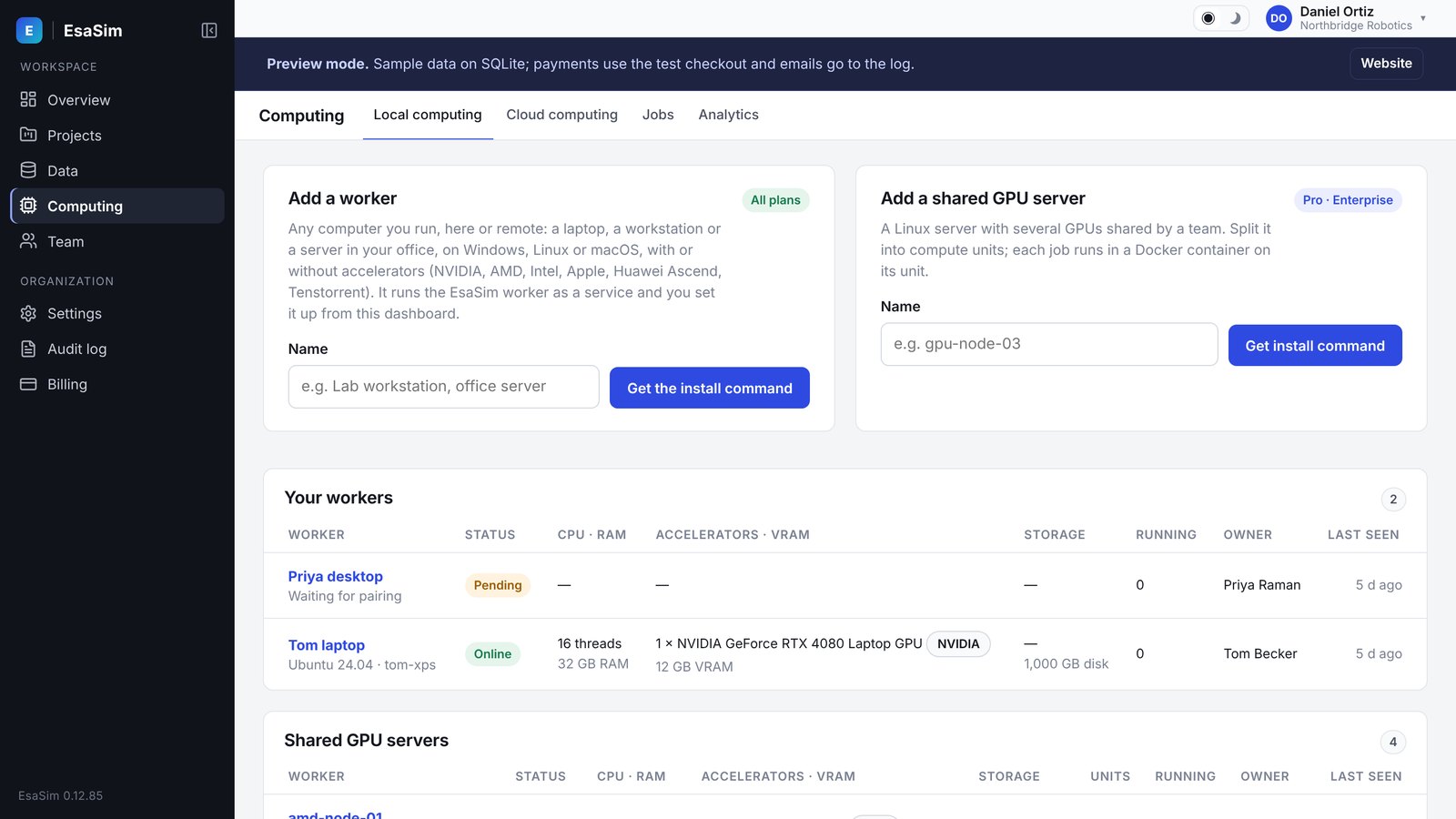
First, in the dashboard, open Computing > My computing > Add a worker, give the worker a name (for example lab-workstation) and choose Get the install command. The page shows, for Windows, Linux and macOS, the line that downloads and builds the worker and the line that pairs it, with a 6-character pairing code already filled in. It works once and expires after 30 minutes; if it expires, choose New pairing code on the worker's page.
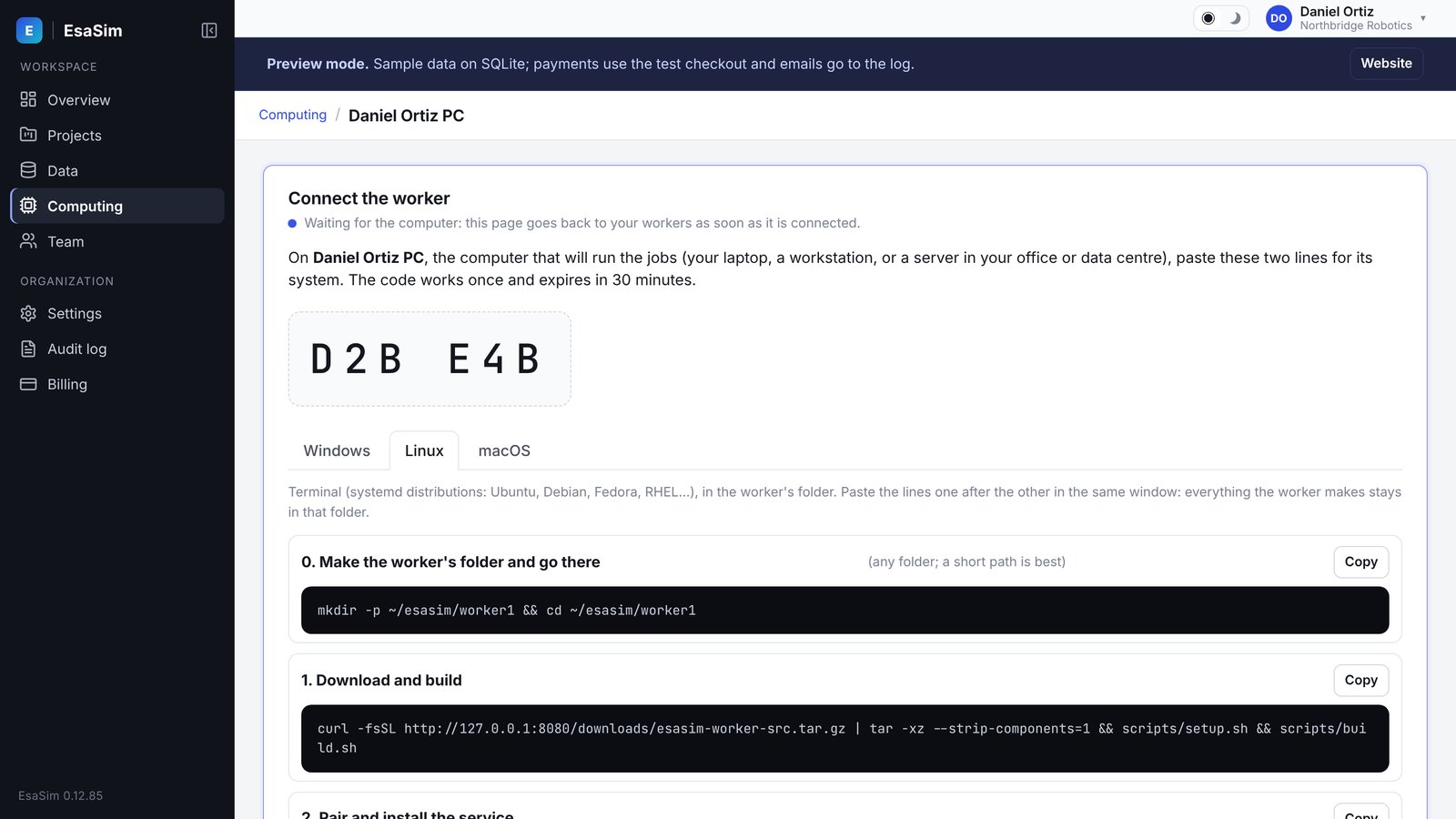
Windows
Nothing needs to be on the computer first. Open an administrator PowerShell (Start, type PowerShell, Run as administrator) and paste the Windows line from the dashboard, with your pairing code already in it:
& ([scriptblock]::Create((irm https://esacode.com/install/worker.ps1))) -Code ABC123It does everything by itself, in C:\EsaSim\worker1 (add -Folder D:\other\path to choose another folder):
- downloads the ready-made worker program,
esasim-worker.exe, and checks its SHA-256; - gives it its own Python 3.12 (the official python.org package, in the folder: the service does not use the Pythons installed for your user);
- installs PyTorch, the CUDA build when the computer has an NVIDIA GPU, and the usual packages for machine learning, vision and data (the first time several minutes, mostly PyTorch; add
-NoPackagesto skip them, blocks then install what they need when they first run); - shows what the worker finds on the computer, and says so if an NVIDIA GPU has no driver yet;
- installs the Windows service, pairs it with your workspace and starts it. It starts with Windows from then on.
Run the same line again (with or without a code) to repair or re-pair an install. The worker updates itself from EsaSim: it downloads the new program, checks it and restarts into it when no task is running. To stop, start or check it by hand (administrator PowerShell):
C:\EsaSim\worker1\esasim-worker.exe service stop
C:\EsaSim\worker1\esasim-worker.exe service start
C:\EsaSim\worker1\esasim-worker.exe service status
Keep the worker's folder out of OneDrive and other synced folders: the service may not be able to read files a sync tool holds. Building the worker from its source is still possible (scripts\windows.ps1 in the source), but no longer needed.
Keep it working with the screen locked. Locking the screen does not stop the worker; the computer going to sleep does. The worker asks Windows to stay awake while it runs (Worker settings › Keep this computer awake; powercfg /requests lists it as "EsaSim worker"). On a PC used as a worker, also turn sleep off when plugged in, in an administrator PowerShell:
powercfg /change standby-timeout-ac 0; powercfg /change hibernate-timeout-ac 0; powercfg /aIf powercfg /a lists Standby (S0 Low Power Idle) (laptops and some new PCs with Modern Standby), the PC drops into standby when the screen turns off: also keep the screen on when plugged in (powercfg /change monitor-timeout-ac 0; it can still lock) or make sure it lists Network Connected.
Use a short folder outside OneDrive, such as C:\EsaSim\worker1: Visual Studio's build tools stop at paths of 260 characters and the library builds in tools are deep, and OneDrive would upload every job file. The script warns about both. The service may read the worker's folder but change only data and config, so code run by blocks cannot change the program; config holds the worker's token and only the service and administrators can read it.
Linux
In a terminal, in the worker's folder (for example mkdir -p ~/esasim/worker1 && cd ~/esasim/worker1):
- Download and build.
setup.shinstalls the compiler, CMake, Ninja, JsonCpp and libcurl with your package manager (apt, dnf, zypper or pacman);build.shbuilds inbuildand leavesesasim-workerin the folder.curl -fsSL https://esacode.com/downloads/esasim-worker-src.tar.gz | tar -xz --strip-components=1 && scripts/setup.sh && scripts/build.sh - Pair. Paste the Linux command from the dashboard. It installs the systemd service
esasim-worker(a second worker's is named after its folder), which runs the program in this folder as the folder's owner, and starts it.sudo ./esasim-worker service install --code ABC123 --server https://esacode.com - Run. The service is running and starts with the worker. The installer ends by printing how to stop it. By hand:
Thesudo ./esasim-worker service stop sudo ./esasim-worker service start ./esasim-worker service status journalctl -u esasim-worker -fsystemctlcommands work too. A stopped service starts again at the next boot; to keep it off,sudo systemctl disable --now esasim-worker.
Update or repair it (a worker that does not update itself, or one installed before 0.13), from any folder: it puts the ready-made worker in place of every worker service on the computer, which stays paired with its settings and data (see Updating, or repairing a worker):
curl -fsSL https://esacode.com/install/fix-worker.sh | sudo bashKeep it working with the screen locked. Locking the screen does not stop the worker; the computer suspending does. The worker (0.11 and later) holds suspend off while it runs: with systemd (systemd-inhibit --list shows "EsaSim worker") and, on GNOME, in your desktop session too, also when you log in after the service started. On a computer used as a worker, turn automatic suspend off as well, so nothing depends on it:
# GNOME, as the desktop user: never suspend on its own (plugged in, and on battery)
gsettings set org.gnome.settings-daemon.plugins.power sleep-inactive-ac-type 'nothing'
gsettings set org.gnome.settings-daemon.plugins.power sleep-inactive-battery-type 'nothing'
# A machine used only as a worker: no suspend or hibernation at all (undo with unmask)
sudo systemctl mask sleep.target suspend.target hibernate.target hybrid-sleep.target
A laptop also suspends when its lid closes, whatever the worker asks: to keep it running closed, set HandleLidSwitch=ignore (and HandleLidSwitchExternalPower=ignore) in /etc/systemd/logind.conf, then sudo systemctl restart systemd-logind (this ends the desktop session). KDE: Energy Saving › Suspend session: Do nothing.
macOS
- Download and build, in the worker's folder (installs the tools with Homebrew):
curl -fsSL https://esacode.com/downloads/esasim-worker-src.tar.gz | tar -xz --strip-components=1 && scripts/setup.sh && scripts/build.sh - Pair. Paste the macOS command from the dashboard. It installs a background service that runs the program in this folder as the folder's owner.
sudo ./esasim-worker service install --code ABC123 --server https://esacode.com - Run. The service is running and starts with the Mac. The installer ends by printing how to stop it. By hand:
sudo ./esasim-worker service stop
sudo ./esasim-worker service start
./esasim-worker service status
Within a few seconds the worker shows as online in the dashboard, with its CPU, memory, disk and accelerators, and Runs as: Service.
Set it up from the dashboard
Open the worker under Computing. The Worker settings card controls everything; the worker applies a change within 30 seconds, without a restart, and the card shows Applied or why it could not apply it.
| Setting | What it does |
|---|---|
| Tasks at the same time | How many tasks the worker runs in parallel (1 to 32). Jobs are split into tasks, so several tasks of one job can run on one worker. Lowering it never stops running tasks; new ones wait. |
| Accelerators | Which GPUs or accelerators jobs may use. None ticked means all. Keep the GPU that drives your displays out if you work on the worker. |
| Sharing the accelerators | All tasks share them, One per task, or Groups (see Workers with several GPUs). Worker 0.7 or later. |
| Space for job files | The most the job files of this worker may take in its data folder, in GB (0 = no limit). At the limit the worker either waits (takes no new task until you free space) or deletes the oldest job folders down to 90% of the limit; it never deletes a running job or a job folder changed in the last 30 minutes. Results uploaded to EsaSim stay there. Worker 0.7 or later. |
| Presets | Which presets the worker runs. None ticked means every preset it supports. |
| Working hours | Always, or a time window in the worker's local time, for example 20:00 to 07:00. Outside it no new task starts; a running task finishes. |
| Blocks run with | Python on this worker, or Docker: one container per block from the image you name (for example python:3.12-slim or a PyTorch image). Docker must be installed and running. |
| Share folders with EsaSim | More folders of the worker that can hold datasets, listed with a name and a full path (on as soon as one is listed). The worker indexes them on request and blocks read them in place; tick Writable (uploads, blocks) for folders that receive new datasets, uploads from the browser and results sent with Outputs go to: EsaSim writes and deletes only in those. The worker's own storage and folders shared with esasim-worker share (below) are listed under Set on the worker and change only there. Worker 0.6 or later; uploads, downloads and deletions from the browser need worker 0.8. |
| Install the Python packages blocks need | Before a block runs, the worker installs the Python packages it is missing (those the block lists, and those its code imports) with pip, into <data folder>/python-packages: never into the system's Python. Later runs reuse them. On by default. |
| Run code from projects | Whether blueprint blocks (Python code from this workspace's projects) may run on the worker. On by default; turn it off for a worker that should run presets only. |
| Paused | No new tasks until you turn it off. |
| Keep this computer awake | Always (the default: ready for tasks at any time), While it runs tasks, or Never. A sleeping worker cannot run tasks and shows as offline. The worker holds back sleep the way a media player does: on Linux with a logind inhibitor and, in a GNOME session, a GNOME one (GNOME suspends an idle computer by itself); on Windows with the system's "system required" flag; on macOS with caffeinate. The screen still turns off and locks. Closing a laptop lid, the power button or Sleep in the menu still put the worker to sleep. The worker's page shows when it last slept and for how long. Worker 0.10.9 or later. |
| Data folder | Where task folders go. Left empty, the worker uses the data folder in its own folder. The worker checks that it can write there and that at least 1 GB is free, otherwise it keeps the old folder and the card shows why. |
Where things are
All in the worker's folder (<folder>):
| Windows | Linux | macOS | |
|---|---|---|---|
| Service | EsaSim worker (EsaSimWorker; more workers: EsaSimWorker-<folder name>) | esasim-worker (systemd) | com.esacode.esasim-worker |
| Runs as | Local Service | the owner of the folder | the owner of the folder |
| Program | <folder>\esasim-worker.exe | <folder>/esasim-worker | <folder>/esasim-worker |
| Configuration | <folder>\config\worker.json | <folder>/config/worker.json | <folder>/config/worker.json |
| Data folder (default) | <folder>\data | <folder>/data | <folder>/data |
| Log | <folder>\config\worker.log | journalctl -u esasim-worker | <folder>/config/worker.log |
| Build | <folder>\build, vcpkg in <folder>\tools | <folder>/build | <folder>/build |
Computers set up with worker 0.9 or earlier have the program in C:\Program Files\EsaSim\Worker (or /usr/local/bin) and the configuration and data in C:\ProgramData\EsaSim (or /etc/esasim and /var/lib/esasim). Build worker 0.10 in a folder and run .\esasim-worker.exe service install there, without a code: it takes the old service over, keeps its pairing, moves its data into the folder and removes the old copy. If the data cannot be moved (another disk), it says so and keeps using it where it is. Older scripts also left C:\dev\vcpkg and %LOCALAPPDATA%\EsaSim\build; the new script says when they are there, and you can delete them.
Each task runs in its own folder, <data folder>/jobs/<job id>/task-NN-<attempt>. Its files stay on the worker and are listed in the project's Results tab; small text, data and image files are also uploaded so you can open them in the dashboard, and larger ones are fetched when you open them. With worker 0.8, a block can also send its results to a dataset while it runs (Outputs go to in the block's settings): the worker sends each file once it stops changing, or copies or moves it into a shared folder of the same computer.
Updates install themselves
A worker updates itself: when this site offers a newer worker, it stops taking new tasks, lets the running ones end, downloads the new program from the site (the ready-made program on Windows and Linux from 0.13; on macOS the source, which it builds in its folder), checks it against the SHA-256 the site gives, checks that the new program starts and says the new version, puts it in place, and restarts (a service is started again by Windows, systemd or launchd; a worker started by hand starts itself again). A failed update is tried again an hour later. A worker that cannot write its own folder says so on its row in Computing, with what to do (see Updating, or repairing a worker). The worker's page says where it is: waiting for its tasks, building, up to date, or what went wrong (the old program then keeps running). Turn it off per worker in Worker settings › Update itself, or on the worker with "self_update": false in config/worker.json. Workers before 0.11, and Windows workers installed before 0.13, cannot do this: update them once with the command under Updating, or repairing a worker.
Where results are kept: results stay on the worker that made them, in the task's folder, and open from there; small ones (summaries, previews) are also sent to EsaSim, and the run's log says which stayed. When a platform admin keeps every result on EsaSim (Admin › Integrations), worker 0.11 and later send every result file when a task ends (in parts, so files of any size up to the server's limit go) and delete the task folder once they are there; a file EsaSim does not take stays in the folder, which is then kept. Only the software the worker installed (Python packages, PyTorch) stays on the computer either way, shared by every project. Training that carries on from an earlier policy reads it from the project's dataset, wired into the block, not from what an earlier run left on the worker.
If you choose a data folder in the dashboard, the service must be able to write to it. On Windows, give LOCAL SERVICE the Modify permission on the folder. On Linux and macOS, the folder's owner's account runs the service.
Storage and shared folders, set on the worker
From worker 0.9, every worker shares a folder of its own with EsaSim: its storage, <data folder>/storage by default (<folder>\data\storage). Datasets can live there, uploads from the browser and results sent with Outputs go to are written there, and the service can always read and write it. These folders are set on the computer, not in the dashboard, so nobody can point the worker at another folder from a browser; the dashboard shows them under Set on the worker, with the space they use.
# where the storage is, and how much EsaSim may write in it (0 = no cap but the disk)
esasim-worker storage --path D:\EsaSim\storage --max-gb 500
esasim-worker storage                 # show it
esasim-worker storage --off           # share no storage

# more folders to share, read-only unless --writable
esasim-worker share add Frames D:\Recordings\frames
esasim-worker share add Results D:\Results --writable
esasim-worker share list
esasim-worker share remove Frames
Run them on the worker (as an administrator for the Windows service, with sudo on Linux), then restart the worker: esasim-worker service stop, then esasim-worker service start. service install and pair also take --storage PATH and --storage-max-gb N. When the storage reaches its size, uploads into it are refused with a message saying so.
A folder shared by the Windows service must be readable by the Local Service account: folders in your user profile (Desktop, Documents) and OneDrive are not. Keep shared data outside your profile, for example D:\Data or C:\EsaSim\shared, and give LOCAL SERVICE Read (or Modify for a writable folder) in the folder's Security tab.
Removing a worker (Computing > the worker > Remove) also removes its shared folders and their datasets from EsaSim; the files on the worker are not touched. The confirmation says how many. To keep datasets while you pair the worker again, pair it first: a folder declared again on the worker at the same path keeps its datasets.
Workers with several GPUs
Under Worker settings, Sharing the accelerators decides which accelerators each task gets. A task only sees its own: the worker sets the variables each runtime reads (CUDA_VISIBLE_DEVICES, HIP_VISIBLE_DEVICES and ROCR_VISIBLE_DEVICES, ZE_AFFINITY_MASK, ASCEND_RT_VISIBLE_DEVICES, TT_VISIBLE_DEVICES, and the Vulkan device list), and a block in Docker gets only those devices (--gpus for NVIDIA, the device files for the others). ESASIM_GPUS tells the task how many it has.
| Choice | What a task gets | Good for |
|---|---|---|
| All tasks share them | Every ticked accelerator | One GPU; or one large task at a time that uses them all |
| One per task | One free GPU of its own; tasks without accelerators see none | Many single-GPU tasks: an 8-GPU worker runs 8 side by side |
| Groups | One free group, whole: the smallest that has as many GPUs as the task needs | Mixed work: an 8-GPU worker as 1 + 3 + 4, for a small task, a medium one and a large one at the same time |
For groups, choose Groups and give each GPU a group number, for example #0 in group 1, #1 to #3 in group 2 and #4 to #7 in group 3. Set Tasks at the same time to the number of groups. A job on your workers can then ask for as many GPUs as your largest group; EsaSim gives a task that needs 3 GPUs only to a worker that has a free group of 3 or more at that moment, and it waits in the queue otherwise. The worker's page shows which groups are in use.
One worker per computer, or several
One worker per computer, with groups, is the recommended set-up: one service and one job folder, and EsaSim knows at each moment which GPUs are free. Run several workers on one computer when parts of it must stay apart: different workspaces or owners, or GPUs reserved for another team. Each worker is a folder of its own, with its own pairing code: on Windows give each install its folder with -Folder; on Linux and macOS download and build in each folder and install each service from it.
& ([scriptblock]::Create((irm https://esacode.com/install/worker.ps1))) -Code ABC123 -Folder C:\EsaSim\worker-a
& ([scriptblock]::Create((irm https://esacode.com/install/worker.ps1))) -Code DEF456 -Folder C:\EsaSim\worker-b
The first service is called EsaSimWorker, the others after their folder (EsaSimWorker-worker-b; esasim-worker-worker-b on Linux), or give a name with --service-name NAME. Commands run in a worker's folder (service status, stop, start, uninstall) act on that worker. Then tick #0 for worker a and #1 to #3 for b in their Worker settings. The dashboard warns on a computer's page when two of its workers may use the same GPU.
Several workers
Jobs that are split into tasks spread over all your matching workers at once, and a combine step merges the results. For a team server whose GPUs are reserved in fixed units with their own RAM and disk, use a shared GPU server with compute units.
Try it without installing
To try the worker in a terminal window, without a service, pair and run it by hand. When it starts it says how to stop it: press Ctrl+C (or close the window); a running task is cancelled cleanly.
esasim-worker pair ABC123 --server https://esacode.com
esasim-worker run
On Windows write .\esasim-worker.exe, on Linux and macOS ./esasim-worker, in the worker's folder. Other commands: esasim-worker scan shows what the worker sees on the computer, esasim-worker status checks the configuration and the connection, esasim-worker version.
Updating, or repairing a worker
One command per computer puts the newest worker in place of every EsaSim worker on it, wherever it was installed: it downloads the ready-made program from this site, checks it against its SHA-256 and that it starts and says the right version, stops each worker's service, keeps the old program next to it (.old), puts the new one in place, lets the service update itself from then on, and starts it again. The workers stay paired, with their settings, folders, datasets and history: no need to remove or pair them again. Run it on a worker that does not update itself (Update by hand or Update failed on its row in Computing), or to repair one.
- Windows, in an administrator PowerShell (right-click PowerShell › Run as administrator), paste this one line:
Or download fix-worker.ps1 and run it in an administrator PowerShell. (Paste the line into PowerShell, not Command Prompt.)& ([scriptblock]::Create((irm https://esacode.com/install/fix-worker.ps1))) - Linux (x86-64), in a terminal:
It uses the ready-made Linux program: nothing is built on the computer. On Ubuntu it may first install two small libraries the program needs (libjsoncpp, libcurl).curl -fsSL https://esacode.com/install/fix-worker.sh | sudo bash - macOS, in the worker's folder (macOS builds the worker itself):
curl -fsSL https://esacode.com/downloads/esasim-worker-src.tar.gz | tar -xz --strip-components=1 && scripts/build.sh && sudo ./esasim-worker service stop && sudo ./esasim-worker service start
Do it while the worker runs no task: stopping the service cancels a running one. Within a minute its row in Computing shows the new version and latest. Each worker prints one line saying what was done; nothing is changed when the download or the check fails.
Why once by hand: a worker runs with the rights of an ordinary account, never an administrator's, so it cannot change what only an administrator may (the permissions of its own folder, the computer's sleep settings). Workers installed before 0.13 cannot write their own folder, so they cannot put a new version in place: the command above fixes that once, and from then on every update installs itself.
Re-pair a worker
When a worker was reinstalled, moved to another folder, lost its configuration, or stays offline while it runs, re-pair it instead of removing it and adding it again: it keeps its name, Worker settings, shared folders, datasets and history.
- Under Computing, choose Re-pair in the worker's row (or on its page). Its current pairing stops working, and the page shows one line with a new code.
- On the computer, paste that line. On Windows, in an administrator PowerShell (it also installs the worker if it is not there, in
C:\EsaSim\worker1; add-Folderfor another folder):
On Linux and macOS, in the worker's folder:& ([scriptblock]::Create((irm https://esacode.com/install/worker.ps1))) -Code ABC123sudo ./esasim-worker service install --code ABC123 --server https://esacode.com. The page goes back to your workers as soon as it is connected. If the worker is not on that computer any more, the page also shows how to install it first.
A worker paired as a new entry in the same folder (an older way, or after removing it) takes over the storage and shared folders of its earlier entry with the same path as soon as it runs: their datasets, and files still waiting to be written, move to it by themselves.
If the worker shows offline and nothing changed on it, it is usually only stopped: .\esasim-worker.exe service status in its folder says so, and service start starts it again.
Uninstalling
esasim-worker service uninstallRun it in the worker's folder, as administrator or with sudo. It stops and removes the service and disconnects the worker from your workspace. The folder stays as it is: delete it to remove the program, its build and its data. You can also choose Remove on the worker's page, which revokes its access immediately.
Troubleshooting
| Symptom | Likely cause | What to do |
|---|---|---|
| "is not recognized" (Windows) / "No such file" (Linux, macOS) | Not in the worker's source folder, or not built yet | Go to the source folder (cd) and run the build command first; it leaves the program there. |
| "the administrator prompt was declined" | "No" was chosen when Windows asked to allow changes | Run the command again and choose Yes. Your account needs administrator rights on the PC. |
| Pairing code rejected | Code expired or already used | Choose New pairing code on the worker's page. |
| No accelerator listed, or no memory size | Driver or Vulkan loader missing or too old | Run esasim-worker scan and install what it lists under To do; update the driver, then restart the service. |
| Jobs stay queued with "Job files reached the limit" | The space for job files is full | Delete old job folders in the data folder, raise the limit, or choose Delete the oldest job folders in Worker settings. |
| A job that needs several GPUs stays queued | No free group is large enough | Check Sharing the accelerators: the job needs a group with at least that many GPUs, free at that moment. |
| Worker shows offline | Service stopped, worker asleep, or no outbound HTTPS | Check sudo esasim-worker service status (Windows: as administrator) and the log. Allow outbound port 443 to esacode.com. |
| Worker goes offline when the screen locks or after a while idle | The computer goes to sleep (suspend). The screen lock itself does not stop the worker. | Update the worker to 0.11 (it keeps the computer awake, on Linux also in a GNOME session that starts after the service; on Windows with a power request) and check Keep this computer awake in Worker settings. Then turn automatic sleep off as shown under Windows and Linux above. Its page shows Last asleep; the log says "This worker was asleep for …". On Linux, journalctl -b | grep -iE "suspend|sleep" lists the sleeps. On a computer used only as a worker, also turn off automatic sleep: GNOME Settings › Power › Automatic Suspend, KDE Energy Saving, Windows Settings › System › Power › Sleep: Never. |
| Files dropped into a dataset on a worker stay at "writes the files: 0 of N" | The worker is not connected, or the dataset belongs to an earlier pairing of it | The message under the upload says which. Start the worker in its folder; with EsaSim 0.12.12 and later a newer pairing of the same computer takes the dataset over and writes the waiting files. |
| Settings show "Not applied" | Usually a data folder the service cannot write to | Fix the folder permissions (see above) or choose another folder. |
| A shared folder shows "Not found" | The path does not exist on the worker, or the service account cannot open it (a folder in your user profile or OneDrive) | Use a folder outside your profile and give LOCAL SERVICE access, or put the files in the worker's storage (see Storage). |
| A block fails with "No module named …" | The package is not installed for the Python that runs blocks, and installing packages is off | Turn on Install the Python packages blocks need in Worker settings, or list the package under Python packages in the block's definition. |
| Jobs stay queued | Paused, outside working hours, preset not allowed, or hardware does not match | Check Worker settings and the preset's supported hardware. |
Task status lost | The worker stopped reporting for 3 minutes | Check that it did not sleep or reboot. A lost task is retried once automatically. |
Still stuck? Write to support with the worker name, the job ID and the last lines of the log.