

Docs / Teams and account
Plans and billing
Compare plans, upgrade, manage seats and billing interval, and handle invoices and payments.
EsaSim has three plans: Free, Pro and Enterprise. This page lists what each includes and how billing works. Prices are on the Pricing page.
Plan comparison
| Feature | Free | Pro | Enterprise |
|---|---|---|---|
| Seats | 1 | 1 | 5 included, more one by one |
| Workers | Up to 2 | Up to 20 | No plan limit |
| Server workers | No | Yes | Yes |
| GPUs per job | 1 | Multi-GPU compute units | Multi-GPU compute units |
| Advanced job spec with replicas | No | Yes | Yes |
| Projects | 3 | Unlimited | Unlimited |
| API endpoints (your own app or CI runs a blueprint) | No | Yes | Yes |
| AI assistants (MCP) | Yes | Yes | Yes |
| Projects on GitHub: branches, pull requests, history | Yes | Yes | Yes |
| Result retention | 14 days | 90 days | 365 days |
| Cloud compute (when available) | No | Yes | Yes |
| Roles and teams | No | No | Yes |
| Per-member permissions and GPU limits | No | No | Yes |
| Enforced 2FA, allowed IP ranges, session timeout | No | No | Yes |
| Audit log with CSV export | No | No | Yes |
| Single sign-on | No | No | Planned |
| On-premise or air-gapped deployment | No | No | By arrangement with sales |
| Support | Community | Priority |
Every user can turn on two-factor authentication for their own account, on any plan.
Billing interval
Pro and Enterprise are billed monthly or annually. Annual billing costs the equivalent of 10 months, so two months are free.
Upgrade from Free to Pro
- Go to Billing and choose Upgrade to Pro.
- Choose monthly or annual billing.
- Complete checkout on the Stripe payment page.
Pro features are available as soon as the payment succeeds. Your projects, workers and jobs stay as they are.
Move from Pro to Enterprise
Enterprise is for organizations: create one from the Billing page (it starts on Free), then choose Enterprise on its Billing page, with the number of seats, and complete checkout. An organization can also be on Pro, when one person works for it. See Organizations and roles. Contact sales for on-premise or air-gapped deployment.
Add or remove seats
Enterprise owners change the seat count under Billing > Seats.
- Seats are added or removed one by one.
- The seat count can never go below the number of members plus pending invitations. Remove members or revoke invitations first.
- Stripe prorates seat changes against the current billing period. The proration appears on your next invoice.
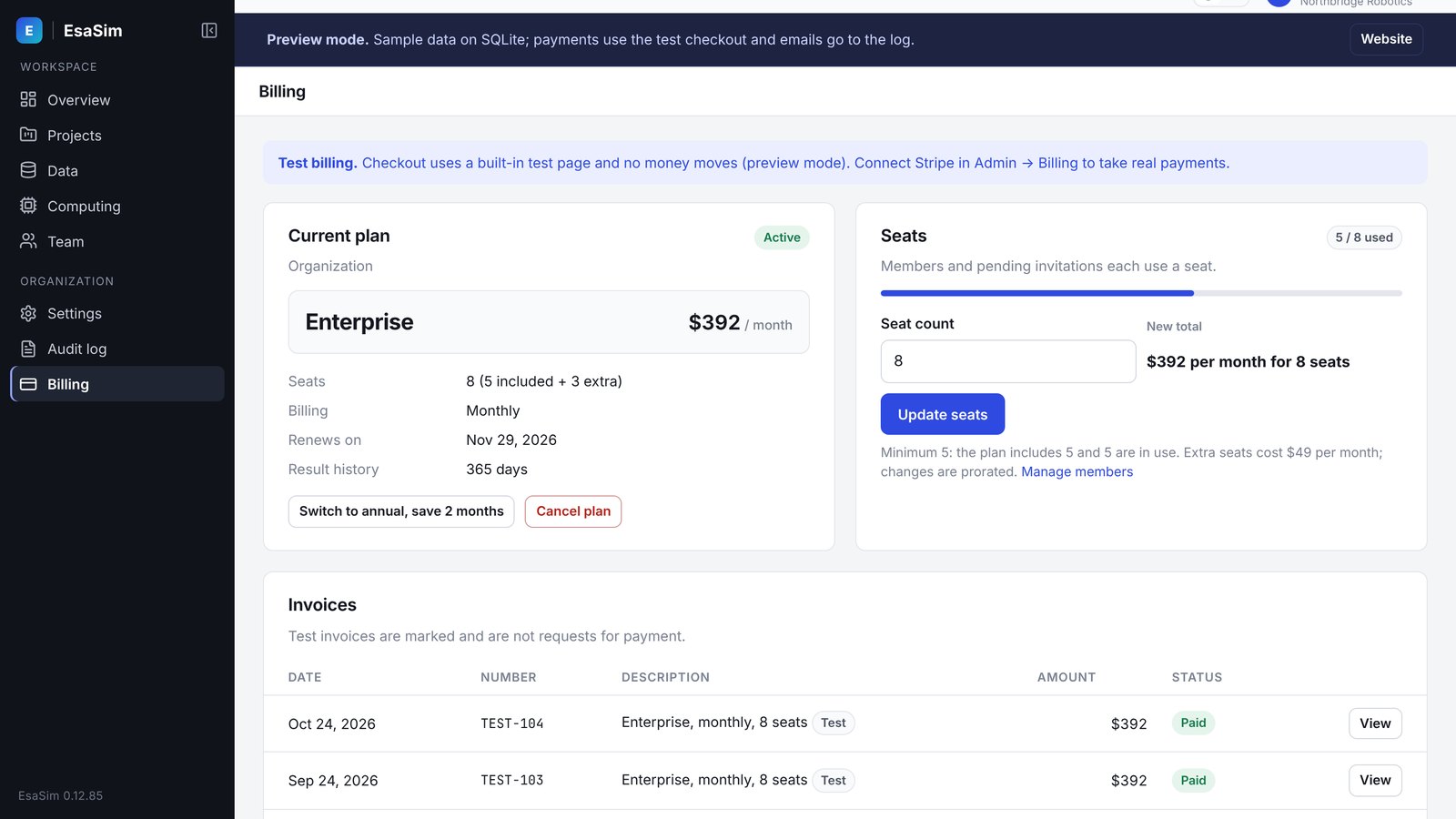
Switch between monthly and annual
Enterprise owners switch the billing interval under Billing. Stripe prorates the change against the current period. The new interval applies from the switch.
Cancel
Cancel from the Billing page. Cancellation takes effect at the end of the paid period. Until then, all paid features remain available. After that, the workspace returns to Free limits. For an organization, only the owner can cancel.
After a return to Free limits, website results follow the Free retention period of 14 days. Files on your workers are not affected.
Invoices and payment method
Payments, card data and invoices are handled by Stripe. EsaSim never stores card numbers. Choose Manage billing on the Billing page to open the Stripe customer portal. There you can:
- Update the payment method.
- Change billing details such as the company name, address and tax ID.
- Download invoices and receipts.
Failed payments
If a renewal payment fails, Stripe retries it and you receive an email. Paid features stay available during a grace period. Update your payment method in the customer portal to resolve it. If payment still fails at the end of the grace period, the workspace is downgraded to Free limits.
Academic program
Verified researchers at universities and research institutes can apply for the academic program at /academic. Describe your institution and research use. We review each application individually.